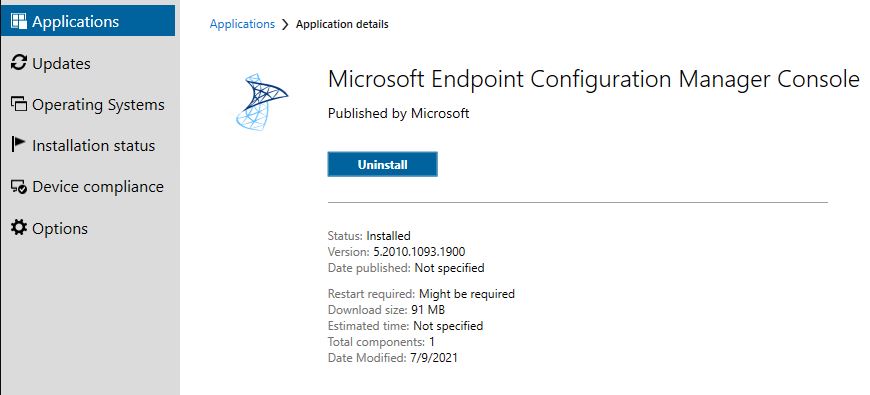
In our environment, we have several technicians that need the Microsoft Endpoint Configuration Manager Admin Console installed on their machines for supporting certain tasks. Instead of having to manually copy the install files to each machine, I wanted to deploy the application using Configuration Manager. The application will not install on the machine and will not even show up in Software Center until I approve it in Configuration Manager. We will achieve this by creating an Available Deployment.
Creating the Application
Navigate to Software Library>Overview>Application Management>Applications and click on Create Application. Click Browse and navigate to the your server that houses MECM. The default location of the Admin Console is C:\Program Files\Microsoft Configuration Manager\tools\ConsoleSetup\AdminConsole.msi.
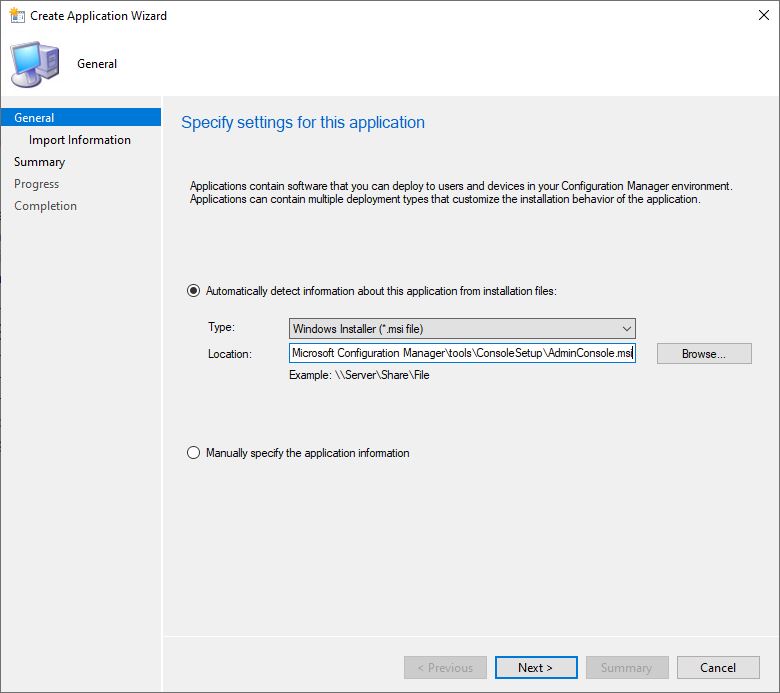
Click Next and then click Next on the Important Information page as well.
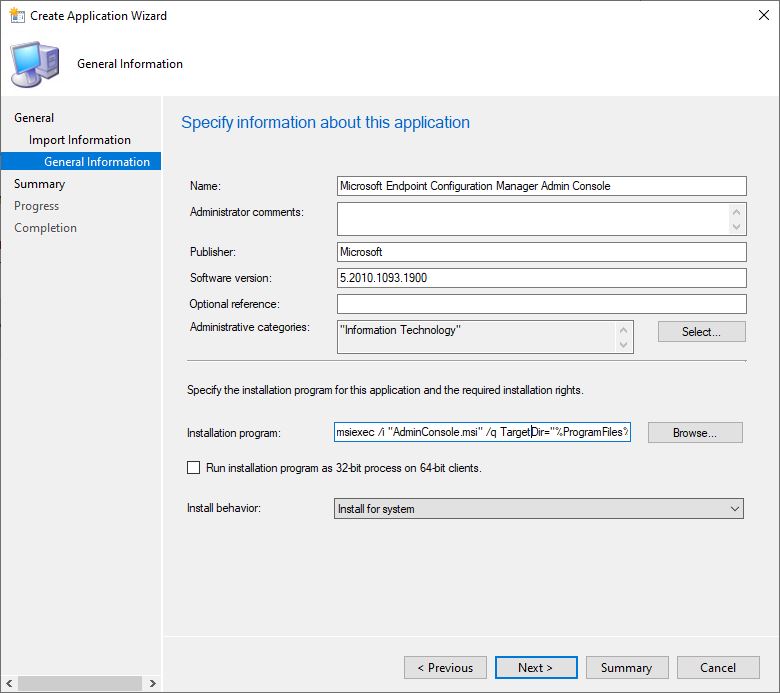
On the General Information page, enter in the necessary details you wish to include for the app. For the Installation program field, add the below text after msiexec /i “AdminConsole.msi” /q.
TargetDir=”%ProgramFiles%\ConfigMgr Console” DefaultSiteServerName=yourserver.domain.com
Click Next on remaining screens until completion.
Deploy Application
Next, go ahead and deploy the application to the collection of your choice.
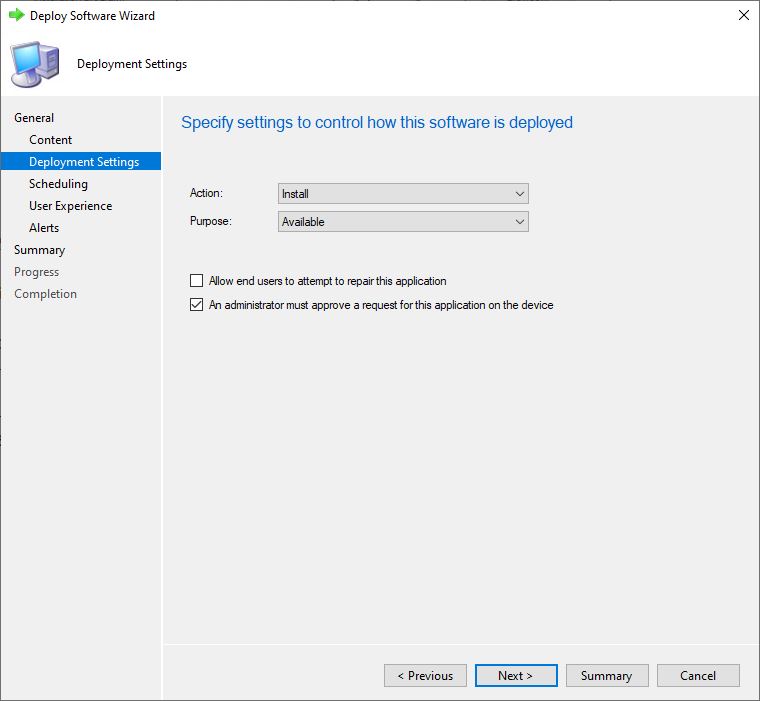
On the Deployment Settings screen, leave the Purpose as Available and make sure to check the box next to An administrator must approve a request for this application on the device.
Click Next until completion.
Install Application
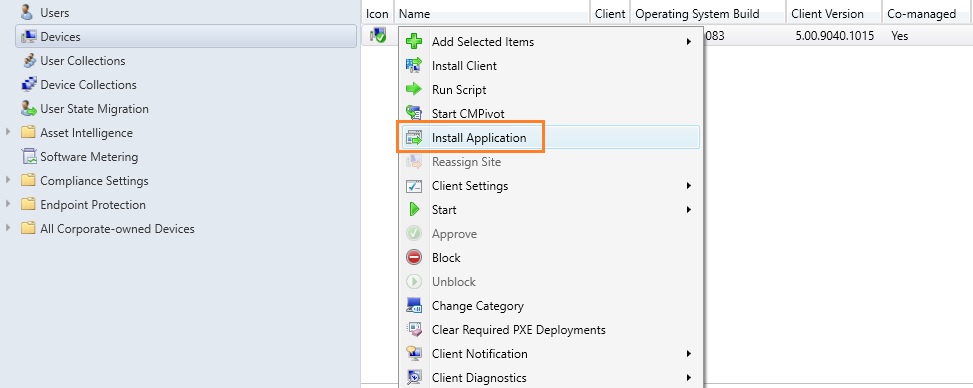
Next, navigate to Assets and Compliance>Overview>Devices> and search for the device for which you wish to install this application. Right click on the device and select Install Application.
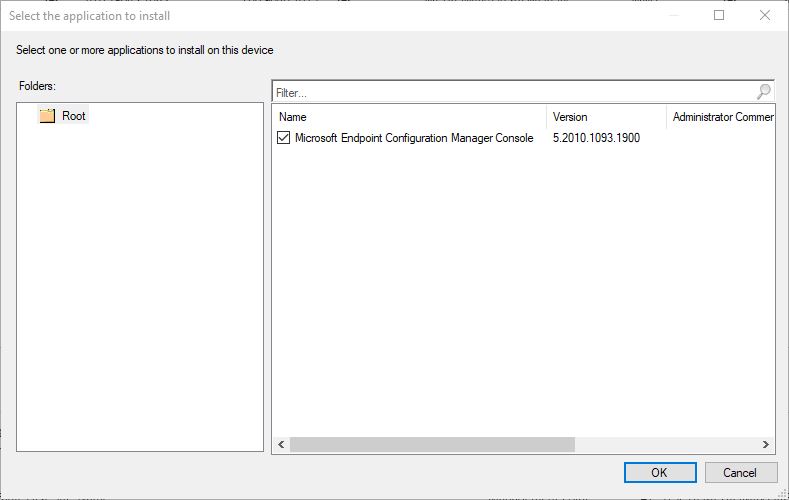
Check the box to select the application and click ok.
After some time you should see the application install on the device you selected.