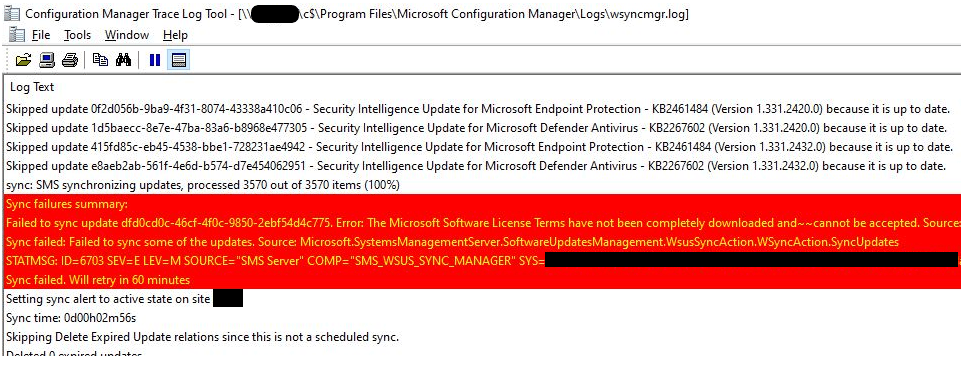
When attempting to run software updates synchronization we are getting an error on the Software Update Point. You can check the status by going to Monitoring>Software Update Point Synchronization Status. The Last Synchronization Error Code we received was 0X80131500. We need to check the WSYNCMGR.log for more information on this error. Upon checking our logs we see additional information related to the License Terms not being completely downloaded and not being accepted.
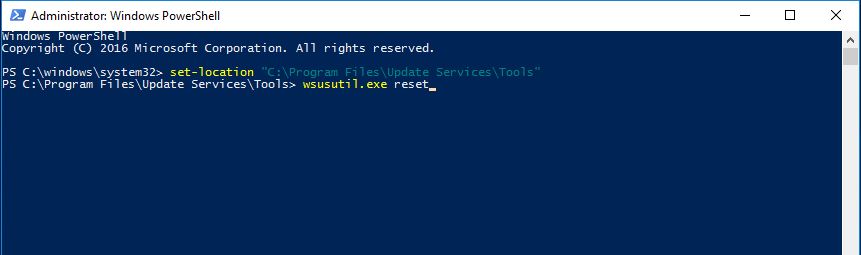
In order to fix this, we need to logon to the server that is hosting the WSUS instance and run the WsusUtil.exe to reset the metadata row in the database that has the corresponding update files. We can run the utility in Command Prompt or PowerShell to use the “reset” command. The location of WsusUtil.exe is C:\Program Files\Update Services\Tools. In PowerShell as Administrator we need to set the location first and then run the exe with the reset command. See below example:
If any update files are missing or have been corrupted, WSUS will download the update files again. We noticed once we ran the Software Updates Synchronization in SCCM we were still having issues syncing the updates. We checked the WSYNCMGR.log file for any new errors. When checking the log file again, there was a different error this time:
Timeout Expired. The timeout period elapsed prior to completion of the operation or the server is not responding. Source: Microsoft.UpdateServices.Internal.BaseApi.SoapExceptionProcessor.DeserializeAndThrow
Open WSUS on the server and you will most likely see the error below.
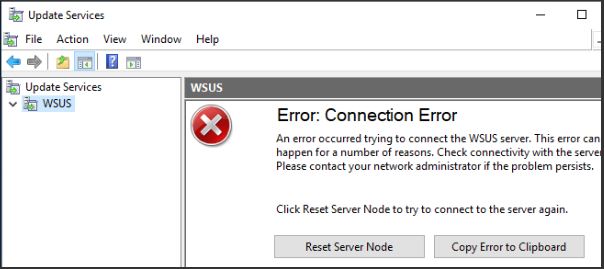
Simply click on Reset Server Node and run the Software Updates Sync again in SCCM. After some time, you will see that the status of the sync will change to successful.


