
I was recently asked how many total user and computer accounts we have in our environment? You can find this by simply highlighting all of the objects in the OU, right-clicking and selecting Properties. You will be presented with the Properties box below giving you the count:
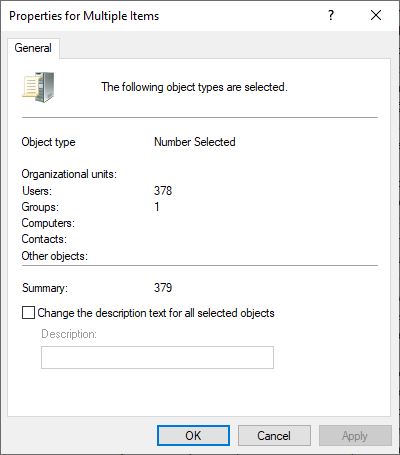
That works fine but what if you have dozens of OU’s? Are you going to highlight all of the objects in each OU, check the Properties and add up the final count? You can do that but here is an easier way. The script below shows how to use the Get-ADComputer, Get-ADUser, and the Get-ADGroup cmdlets. This is just an example. You will have to customize it to your environment and add/remove the OU’s that you wish. These cmdlets don’t require domain admin credentials to work either so this script can be shared with others.
$Computers = (Get-ADComputer -Filter ).count
$Workstations = (Get-ADComputer -LDAPFilter "(&(objectClass=Computer)(!operatingSystem=server))" -Searchbase (Get-ADDomain).distinguishedName).count
$Servers = (Get-ADComputer -LDAPFilter "(&(objectClass=Computer)(operatingSystem=server*))" -Searchbase (Get-ADDomain).distinguishedName).count
$TotalUsers = (Get-ADUser -Filter *).Count
$Office1Users = (Get-ADUser -Filter * -SearchBase "OU=Users,OU=office1,DC=domain,DC=org").count
$Office2Users = (Get-ADUser -Filter * -SearchBase "OU=Users,OU=office2,DC=domain,DC=org").count
$Groups = (Get-ADGroup -Filter *).Count
Write-Host "Computers="$Computers
Write-Host "Workstations="$Workstations
Write-Host "Servers="$Servers
Write-Host "Total Users="$TotalUsers
Write-Host "Office 1 Users="$Office1Users
Write-Host "Office 2 Users="$Office2Users
Write-Host "Groups="$Groups

