Having your devices hybrid joined simply means they will be visible in your on premises AD as well as Azure AD, similar to how your users are setup. This is a requirement for managing your devices through Intune (Endpoint Manager). The benefits of hybrid joining your devices besides the Intune requirement would be conditional access as well as 365 device licensing options.
Before We Begin
By default, domain joined machines automatically try to hybrid join by running the ‘Workplace Join’ task through Task Scheduler. This can be checked by opening Task Scheduler and navigating to Task Scheduler Library/Microsoft/Windows/Workplace Join. Notice the Automatic-Device-Join Task status is ‘Ready’.
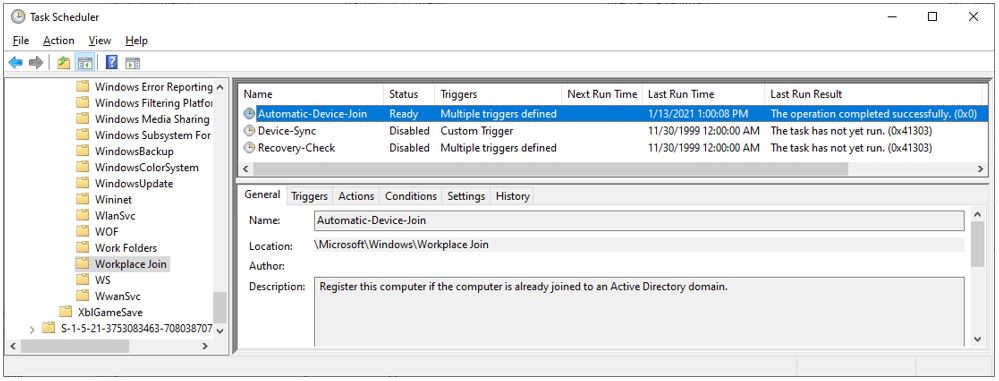
Note: If a machine is not joined to the domain, the status will show ‘Disabled’.
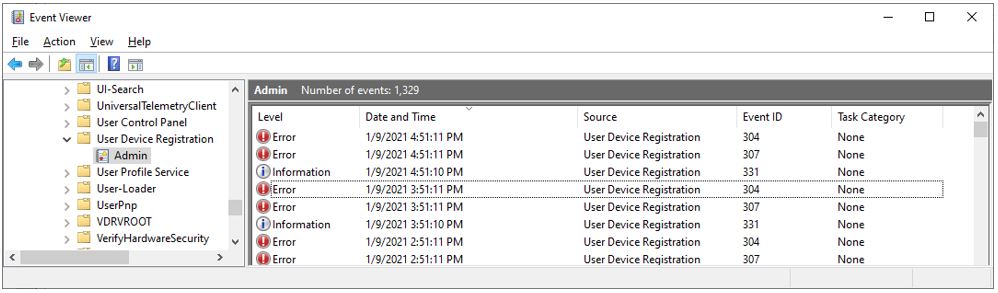
The logs created by this Task can be found by opening Event Viewer and navigating to Applications and Services Logs/Microsoft/Windows/User Device Registration/Admin. A common event generated before enabling Hybrid Join is Error 304: Automatic registration failed at join phase. Once Azure AD Hybrid Join is activated and the Service Connection Point is added, these errors will not generate anymore.
Enable Hybrid Azure AD Join
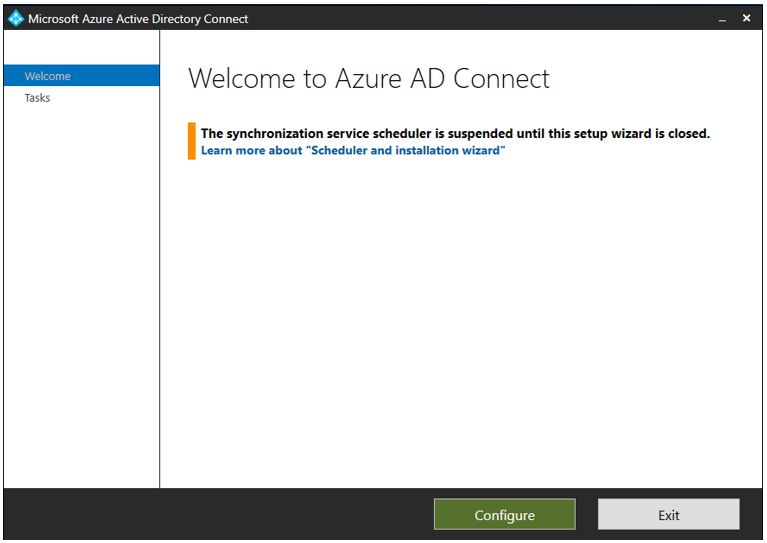
To configure hybrid Azure AD join, lets go ahead and start the Azure AD Connect app and select Configure.
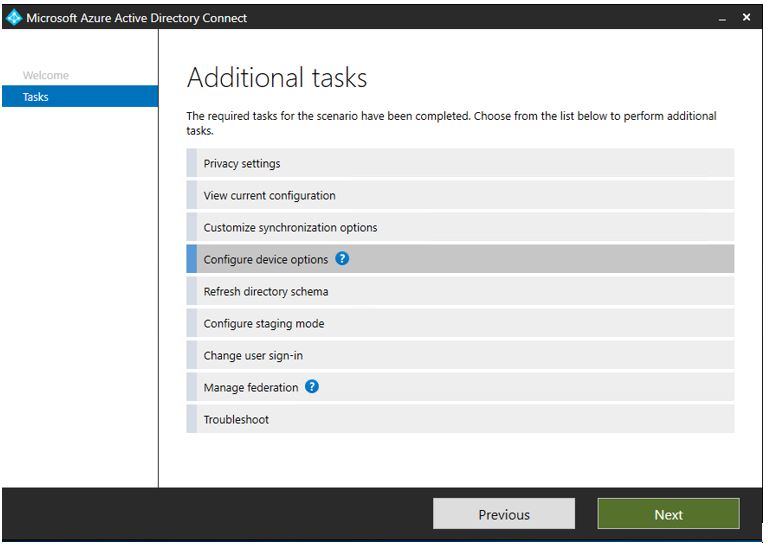
In Additional Tasks, select Configure device options, and then select Next. In the Overview page, select Next.
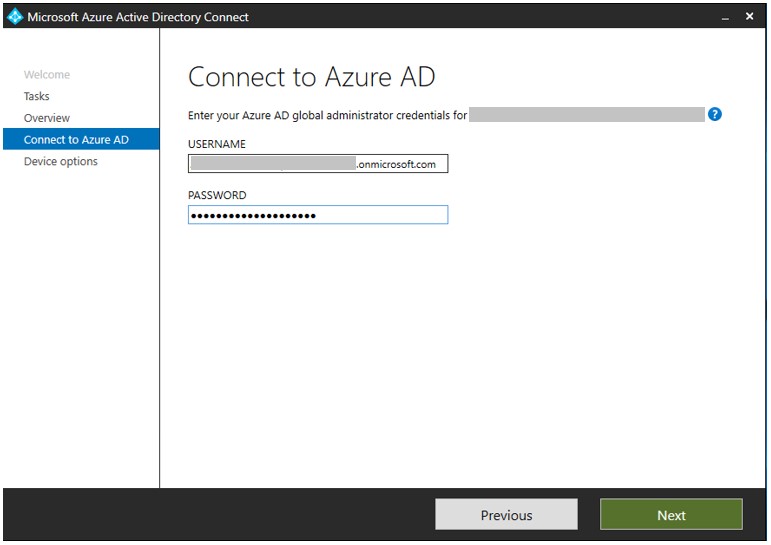
In Connect to Azure AD, enter the credentials of a global administrator and select Next.
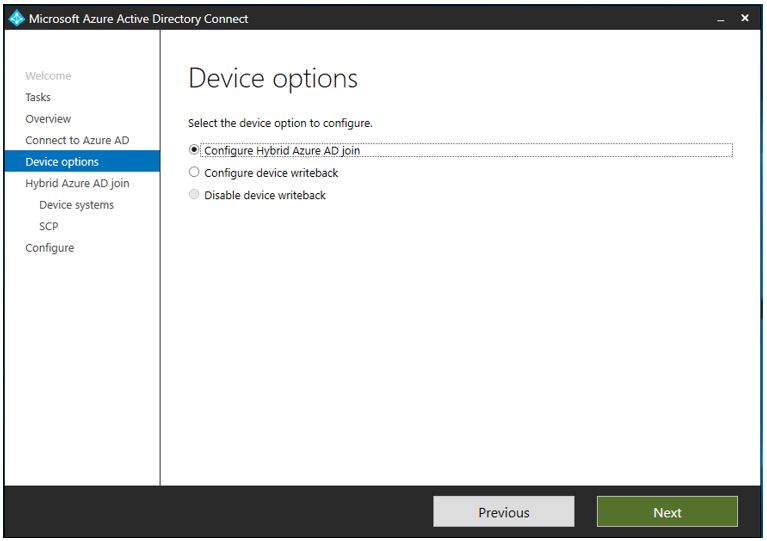
In Device options, select Configure Hybrid Azure AD join and select Next.
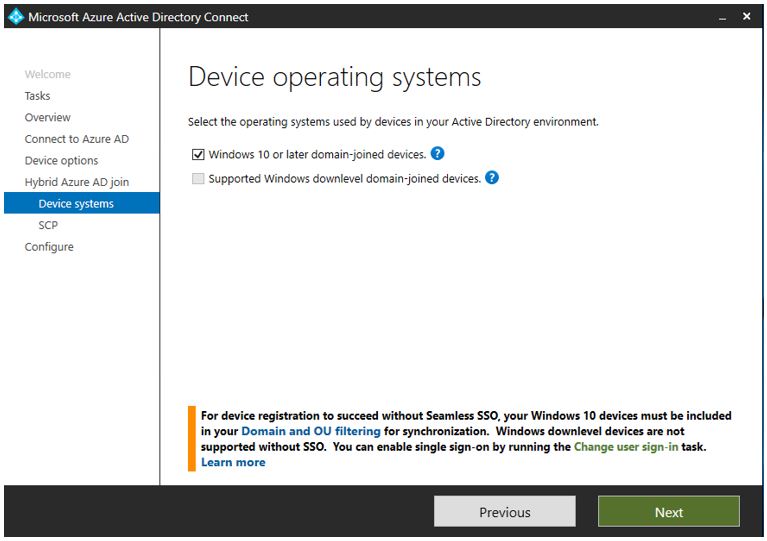
In Device systems, select Windows 10 or later domain-joined devices and select Next.
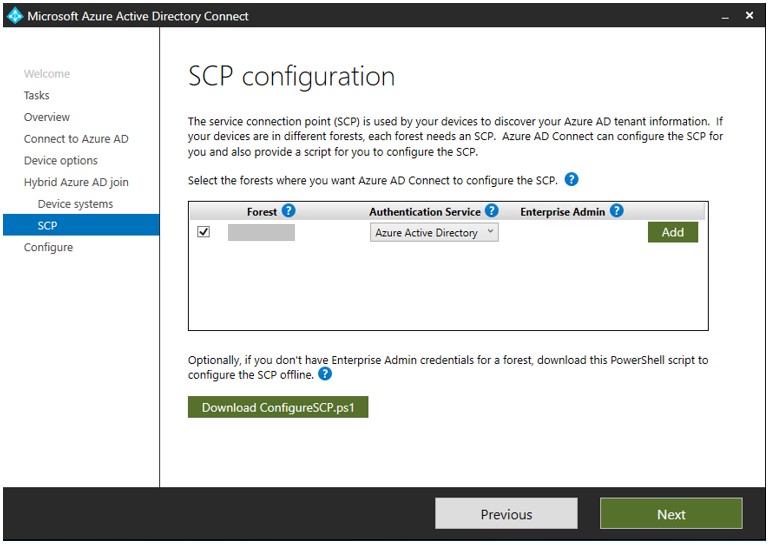
In SCP configuration, select the Forest and Authentication Service as Azure Active Directory. Click Add to enter the enterprise administrator credentials. After entering the enterprise admin credentials, click Next.
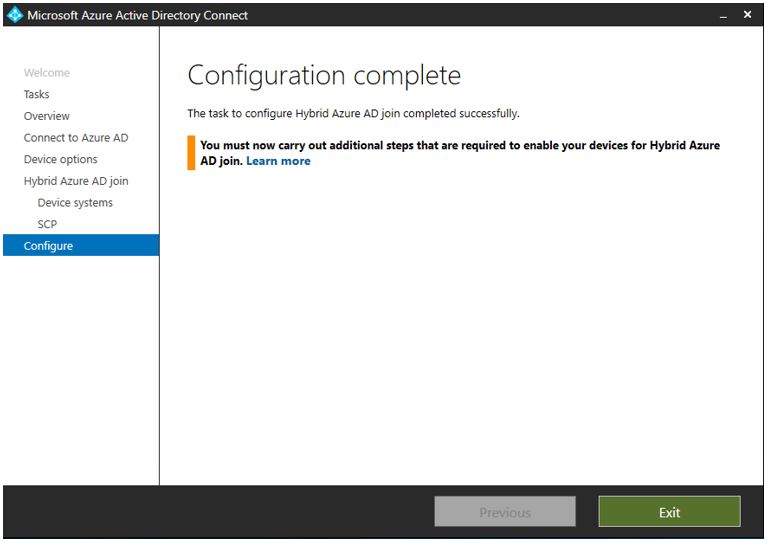
On the Ready to configure page, select Configure. Once configuration is complete, click Exit
Azure AD Connect automatically syncs every 30 minutes. To manually force an ADSync and avoid the delay, you will need to run the ADSyncSyncCycle
If you are not logged into the server with ADConnect:
Open Powershell as Administrator
Enter-PSSession -ComputerName [SERVERNAME]
Run the following command: Import-Module ADSync
Run the following Command(s):
For a Delta Sync (most common, and used for most situations):
Start-ADSyncSyncCycle -PolicyType Delta
For a Full Sync (only necessary in some situations):
Start-ADSyncSyncCycle -PolicyType Initial
If you used the Enter-PSSession command, you must exit the session or it will remain open even after terminating the PS Host. You can do so by simply using the command: Exit
If you are logged into the server with ADConnect
Open Powershell as Administrator
Run the following command: Import-Module ADSync
Run the following Command(s):
For a Delta Sync (most common, and used for most situations):
Start-ADSyncSyncCycle -PolicyType Delta
For a Full Sync (only necessary in some situations):
Start-ADSyncSyncCycle -PolicyType Initial
Verify the Registration
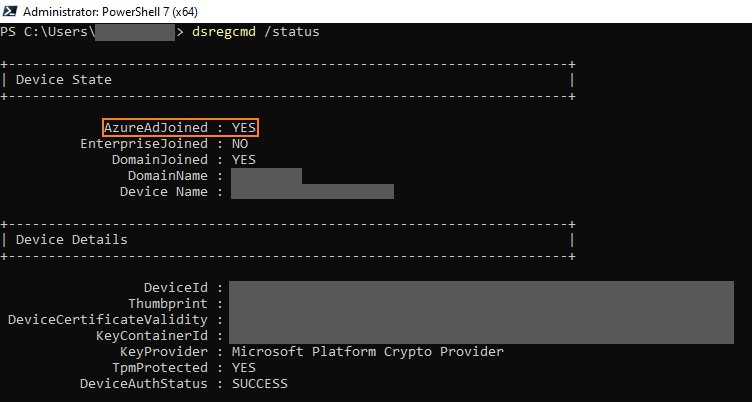
To verify a machine is Azure AD joined, open PowerShell as an Administrator and run the command: dsregcmd /status. You will notice AzureADJoined status is YES.