
I was tasked with moving a VM from Azure to on-prem earlier this week. The strategy seemed simple enough, just download the VM’s virtual hard disk file (.vhd) from the Azure portal and attach the .vhd to a VM on the hypervisor. During the download, I kept getting a failed error message and had to click on resume to continue downloading multiple times. Near the end of the download and several hours later, I received a message that the download failed again but this time there was no resume option, only a forbidden error. I got the below XML code when trying to resume downloading which tells me that the signature expired.
<Error>
<Code>AuthenticationFailed</Code>
<Message>Server failed to authenticate the request. Make sure the value of Authorization header is formed correctly including the signature. RequestId:654dfa58-65e5-9518-6518-8e81f6000000 Time:2021-03-16T16:33:34.5468ser982Z</Message>
<AuthenticationErrorDetail>Signed expiry time [Mon, 15 Mar 2021 21:49:58 GMT] has to be after signed start time [Tue, 16 Mar 2021 16:33:34 GMT]</AuthenticationErrorDetail>
</Error>
This is a 500gb file, so I may need to increase the expiration. But, there has to be a quicker and more reliable way right?
Install AzCopy
AzCopy is a command-line tool that you can use to copy blobs or files to and from Azure storage accounts. There are different authentication methods for using AzCopy. If you just want to download then you will need to add the Storage Blob Data Reader role to your identity. If you want to upload then you will need to add the Storage Blob Data Contributor or the Storage Blob Data Owner role to your service identity. We will be using shared access signature (SAS) in this post.
To install, download AzCopy from https://docs.microsoft.com/en-us/azure/storage/common/storage-use-azcopy-v10. Unzip the folder and place the exe into your System32 folder, otherwise you will have to set the location in PowerShell each time.
Run PowerShell as Administrator and login to AzCopy by typing azcopy login
To login to a specific tenant, use: azcopy login –tenant-id <xxx-xxx-xxx-xxx-xxx>
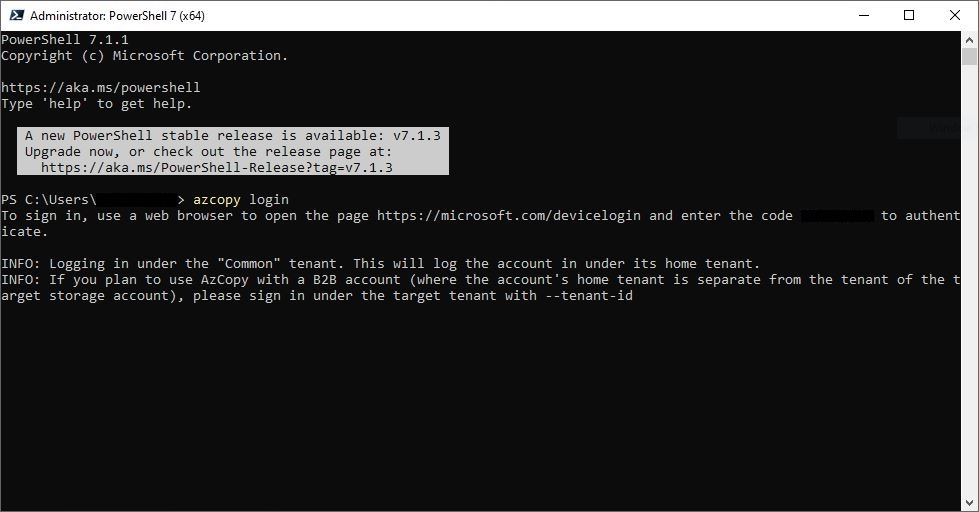
This will prompt you to open your browser and go to https://microsoft.com/devicelogin and enter in the code to authenticate
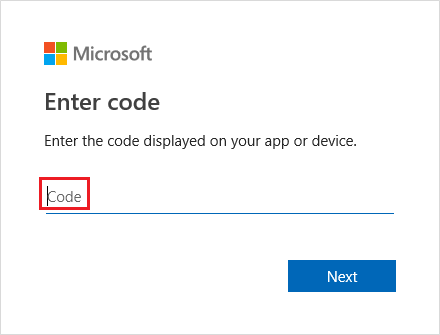
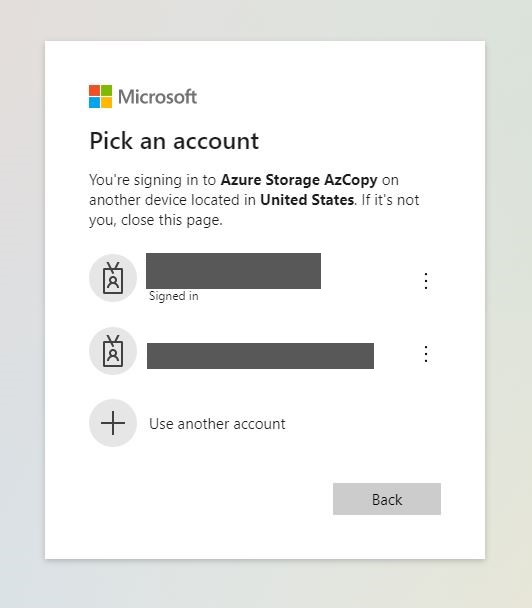
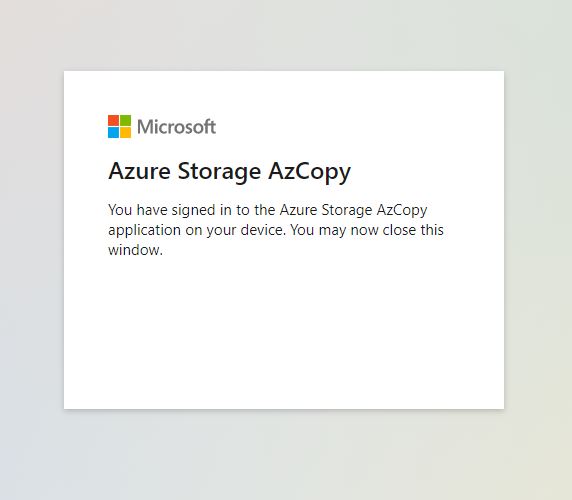
Once you have entered in the code and chosen your login account, let’s go ahead and generate the SAS.
Generate SAS in Azure Portal
In Azure Portal, navigate to Storage Accounts>your-storage-account>your-container>file-to-download
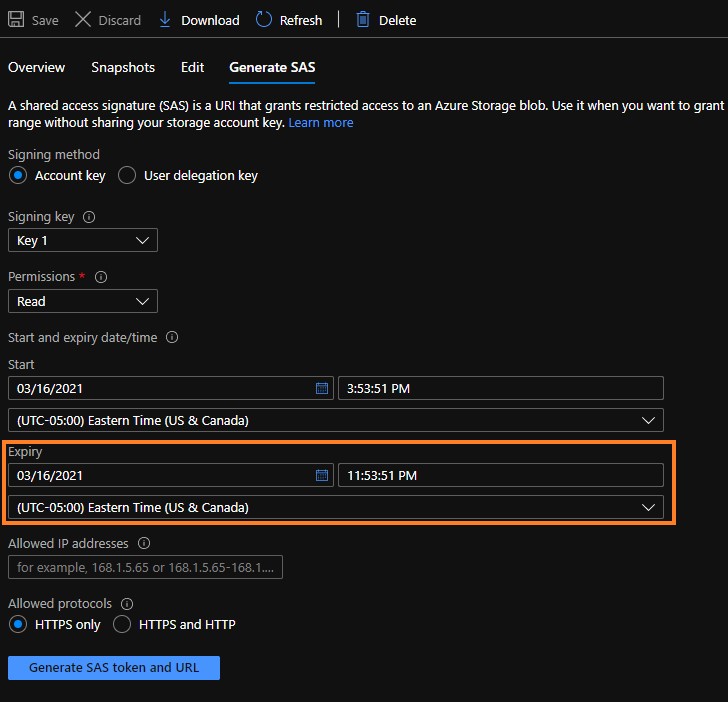
Click on Generate SAS and adjust the expiry date to accommodate the file size.
Click on Generate SAS token and URL. Copy the URL to clipboard
Start Downloading
Back in PowerShell, we will use AzCopy to start the download. Use the SAS URL that was provided by Microsoft and enter in the destination location where you want the file to be downloaded.
azcopy cp ‘https://your-storage-account.blob.core.windows.net/your-container/your-virtual-machine.vhd?sp=share-permissions&st=signature-start-time&se=signature-expiry-time&spr=protocol-allowed&sv=signed-version&sr=signed-resourece&sig=unique-signature’ ‘c:\folder\vm.vhd’
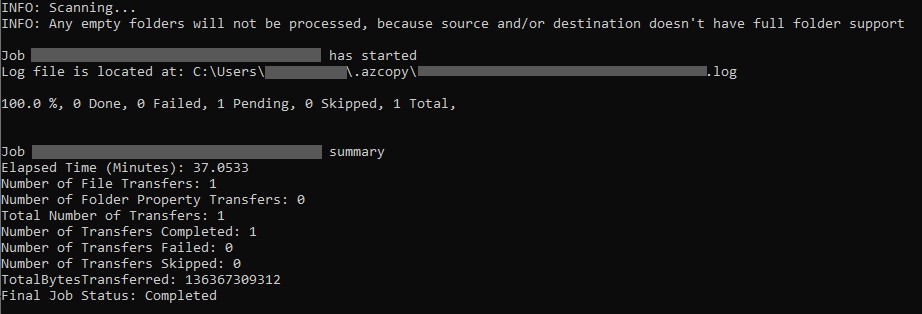
Depending on your network connection, you can see this is a much faster way to download large files from your blob containers.
Upload
To upload, create a container within the storage account and generate the SAS on the container. You cannot upload directly to the root of the storage account.
Within PowerShell, run the following command to upload a VHD file (VHD files will upload as a Page Blob):
azcopy copy “c:\vm01.vhd” “https://your-storage-account.blob.core.windows.net/your-container/your-virtual-machine.vhd?sp=share-permissions&st=signature-start-time&se=signature-expiry-time&spr=protocol-allowed&sv=signed-version&sr=signed-resourece&sig=unique-signature”
If you are copying an entire folder, you will need to append with –recursive=true
azcopy copy “c:\files” “https://your-storage-account.blob.core.windows.net/your-container/filesharesfolder?sp=share-permissions&st=signature-start-time&se=signature-expiry-time&spr=protocol-allowed&sv=signed-version&sr=signed-resourece&sig=unique-signature” –recursive=true
Tips
AzCopy log files are located in C:\Users\user-account\.azcopy
Initially when I was trying download the file to another computer on the network, I was getting a failure:
File Creation Error destination file has no known flags that could cause issue (current set: 0) and azcopy was unable to clear the flag(s), so access will be denied: Access is denied.
I believe this is because I was trying to download the file to a share path instead of using the hidden share of the path: \\computername\share\. I was allowed to download the file when I typed in \\computername\c$\share\ instead. I wasn’t able to find why this is the case.
The method outlined in this post didn’t download the latest instance of the virtual machine. You are not allowed to export a disk while it is currently attached to the virtual machine. So, this means you would have to delete the VM while keeping the disks that were attached. Then you can export those disks by generating a secure URL.
Deleting a VM before actually testing that the on-premises version would work seemed a bit scary to me. So, I went ahead and created a backup of the VM and performed a VM restore to create additional restore disks to download.
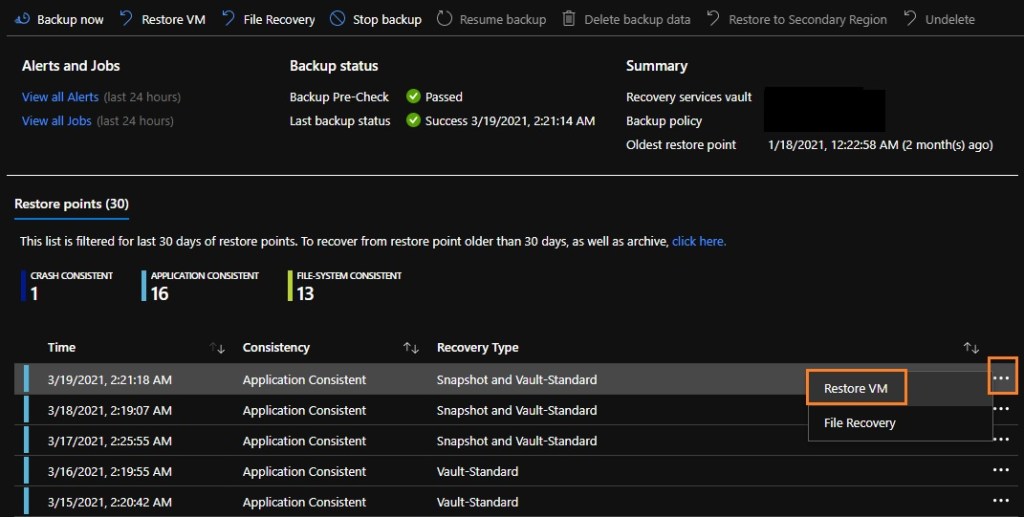
In Azure Portal, navigate to the VM in question and click on Backup. You can choose the restore disks from a recent backup or run a new backup job for the latest instance of the VM. To the right of the backup point you wish to use, click on the context menu and click Restore VM.
Click on Create New
Restore Type should be Restore Disks
Choose the Resource Group
Choose the Staging Location
Wait for the backup job to complete. In Azure Portal, navigate to the Disks.
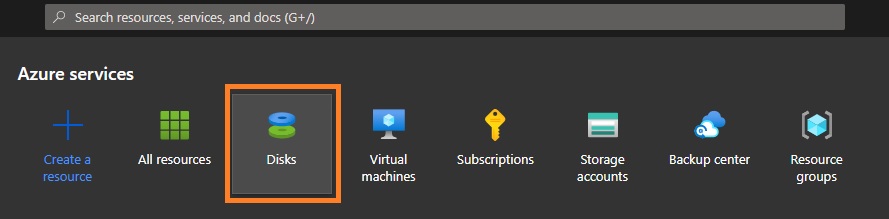
Select the disk that was just created from the backup job and click on Disk Export. Then click on Generate URL.
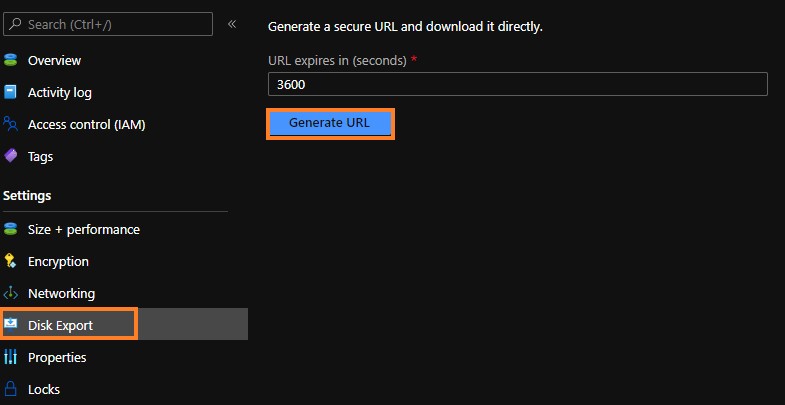
Once you have the URL, you can downloading using AzCopy.
This is just a brief overview of AzCopy and SAS tokens and how I used them for my specific case. There are many security concerns that you need to evaluate before using these tools. To learn more about AzCopy and SAS tokens, I recommend you read Microsoft’s article: https://docs.microsoft.com/en-us/azure/storage/common/storage-use-azcopy-v10.

