
In Configuration Manager, there are features included in the current branch for early testing in a production environment. These features are fully supported, but still in active development which means they might receive changes until they move out of the pre-release category. The available features can be found if you navigate to Administration>Overview>Updates and Servicing>Features. Before you can actually use any of the pre-release features, they need to be turned on. I was recently setting up a CMG for our site and I needed to enable the virtual machine scale set feature. When I went to enable the feature, the option to Turn On was greyed out.
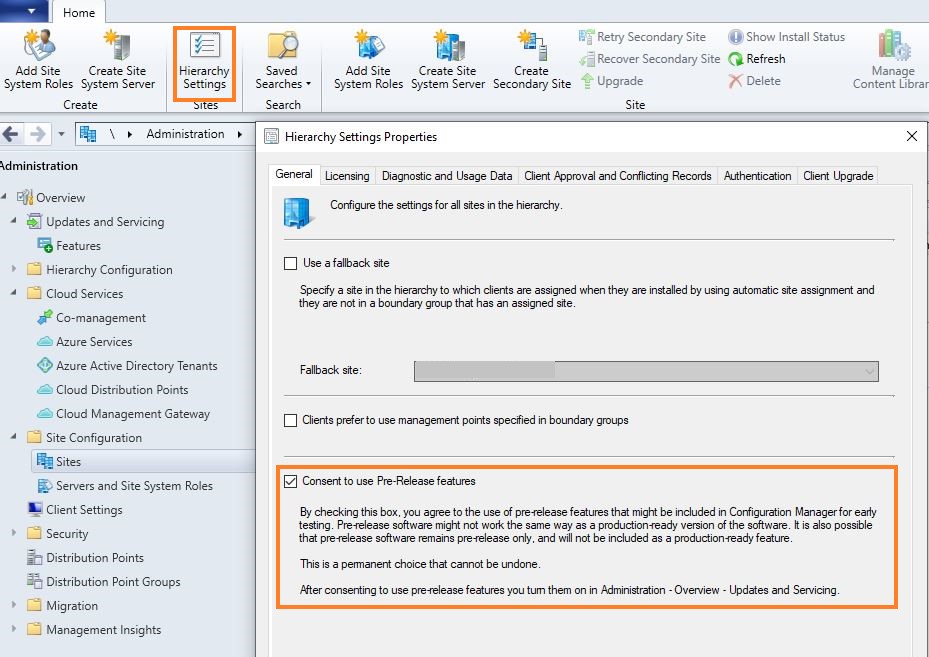
In order to turn on features, we need to first give consent to using features. Consent can be given if you click on Hierarchy Settings when you navigate to Administration>Overview>Site Configuration>Sites. Under the General tab, click the box next to Consent to use Pre-Release features.
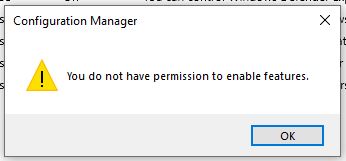
After giving consent, I was presented with a different issue. When I went to Turn On the feature, I was given an error message saying I did not have permissions to enable features.
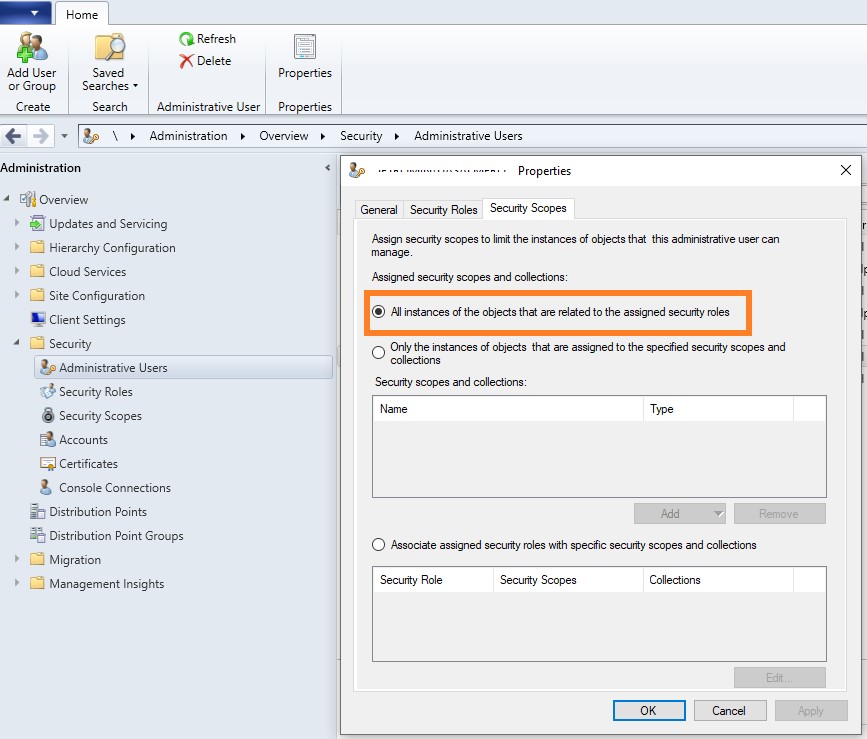
My user account was setup with the “Full Administrator” security role so I was intrigued about why I would be getting this permissions message. The reason my user account was getting this error is related to security scopes. When a new user account is added in Configuration Manager, the default security scope is “Default”. We need to change this security scope to “All” in order to enable features. You can only make this change with an account that is already in the “All” group. Navigate to Administration>Overview>Security>Administrative Users and go to the properties of the account in question. Click on the Security Scopes tab and change to All instances as seen below.
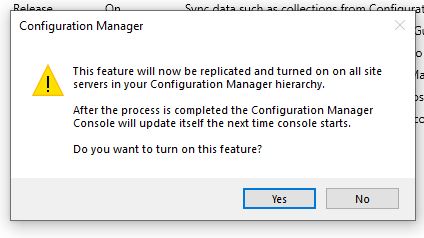
Go back to the features, click Turn On and click yes to confirm.
The Configuration Manager hierarchy manager (HMAN) must process the change before that feature becomes available. Processing of the change is often immediate. Depending on the HMAN processing cycle, it can take up to 30 minutes to complete. After the change is processed, restart the console before using the feature.

