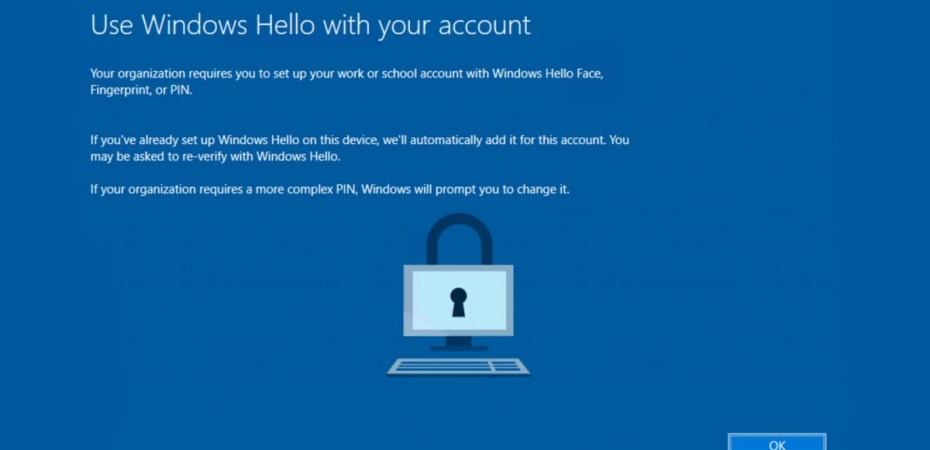
You may have come across this screen when setting up workstations in your organization from the OOBE (Out of Box Experience). Windows Hello uses a more personal touch for authentication such as facial recognition, fingerprints, and PIN numbers. If this is not something you wish to have in your environment, you can disable Windows Hello using Microsoft Endpoint Management admin center (Intune).
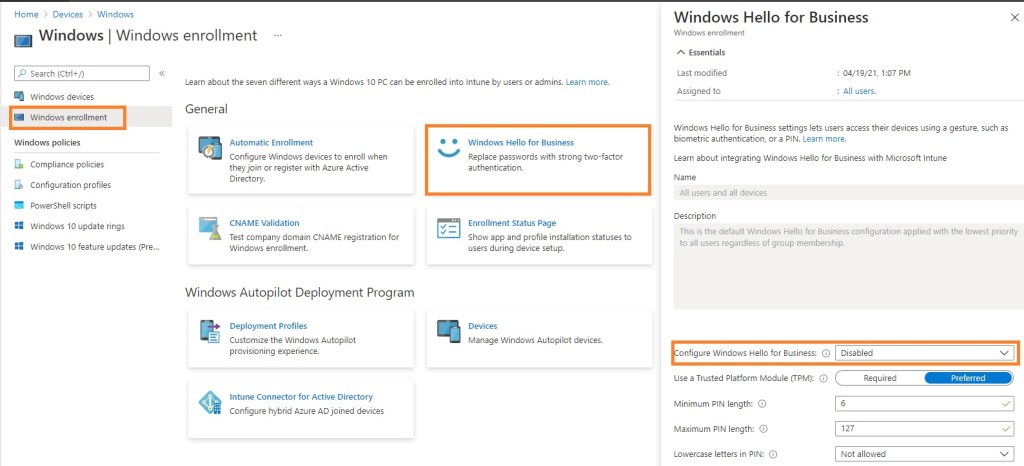
Start by going to Microsoft Endpoint Management admin center and logging in with an Intune Administrator role. Navigate to Devices>Windows>Windows Enrollment. Click on the Windows Hello for Business tile. Within the Windows Hello for Business settings, you can see the dropdown option to Disable. That’s all you need to do. The change should take effect within a few minutes.