In this post, I will walk you through creating a Win32 app for deployment through Intune. This process will create the .intunewin file that needs to be uploaded. This is a brief overview of the basics so if you are looking for something more in-depth, Microsoft provides great documentation here: https://docs.microsoft.com/en-us/mem/intune/apps/apps-win32-app-management.
Prerequisites
-Devices need to be enrolled in Intune and either Azure AD joined or Hybrid Azure AD joined
-Single application size cannot be greater than 8gb
-Windows 10 version 1607 or later is required (Enterprise, Pro or Education)
In order to create the .intunewin package we need to download the Microsoft Win32 Content Prep Tool. Once you download the IntuneWinAppUtil.exe you can start using commands to prep your packages. One of the useful features of this tool is if your files are greater than 8gb, the Win32 Content Prep Tool will try to cleanup and reduce the file size to meet the requirements.
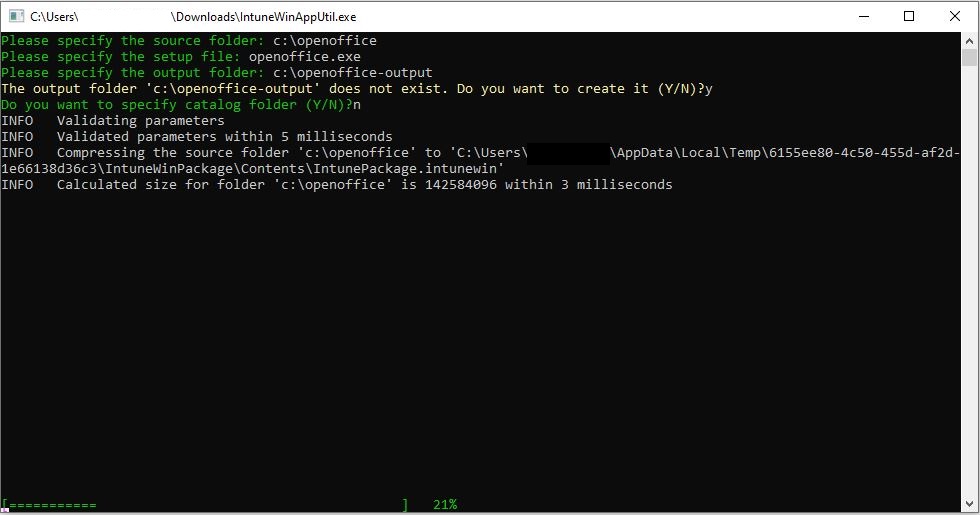
You can run IntuneWinAppUtil.exe without any parameters and it will prompt you for the required commands to create the package. The available commands are listed below:
| Command | Description |
|---|---|
| -c [setup folder] | The folder where all setup files are currently located. Everything in this folder will be compressed into the .intunewin file |
| -s [setup file] | The setup file itself (.exe or .msi) |
| -o [output folder] | The output folder where you’d like to place your .intunewin file |
| -q | Quiet mode |
Here is an example of how a command might look
IntuneWinAppUtil.exe -c c:\myapp -s c:\myapp\myapp.exe -o c:\mynewapp -q
Prepping the app
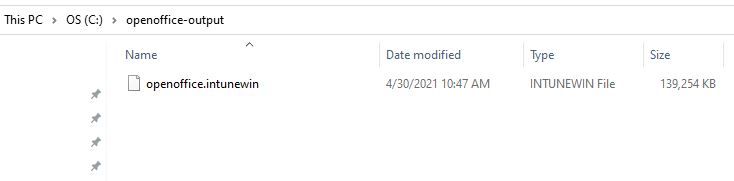
Now that we have the prerequisites out of the way, lets try to package an application for Intune. I’m going to run the IntuneWinAppUtil.exe as administrator without any parameters to show the step by step guide. The process goes by very quickly once you choose the options. You can see the output folder was created as well as the intunewin file. The size difference only increased by a few KB.
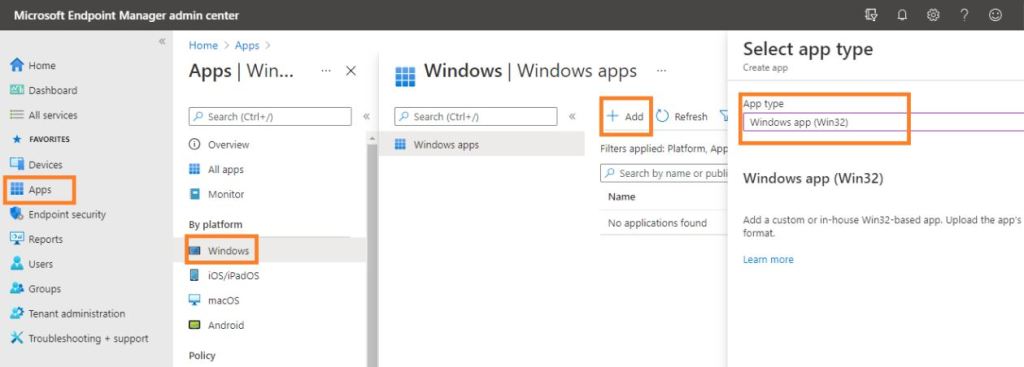
Now we can upload the newly created intunewin file to Intune for deployment. Navigate to Intune and login with Intune administrator role credentials. Click on Apps on the left. Then click on Windows under the platform category. Next, click on +Add and select the Windows app Win32 for app type. From here you will be able to configure more options like install parameters, dependencies, detection rules and assignments.