In this post I will walk through the process of deploying your company Wi-Fi profile to wireless devices with the password so they can automatically connect without any user interaction. You can use Configuration Manager to push Wi-Fi profiles that will include certificates for server validation and client authentication to make the process easier for laptops and mobile devices within range. In my case, I will be deploying a profile with only WPA2 authentication. The easiest way to deploy these profiles is by importing a XML file. First, lets walk through the command line prompts to export your Wi-Fi profile. I am currently logged into my company laptop and connected to the Wi-Fi profile I want my users to automatically connect to and use.
Open Command Prompt or PowerShell and type the following to show your profiles
netsh wlan show profiles
If you have more than one profile, it will show in this list. At this point, I only have one profile on this laptop.
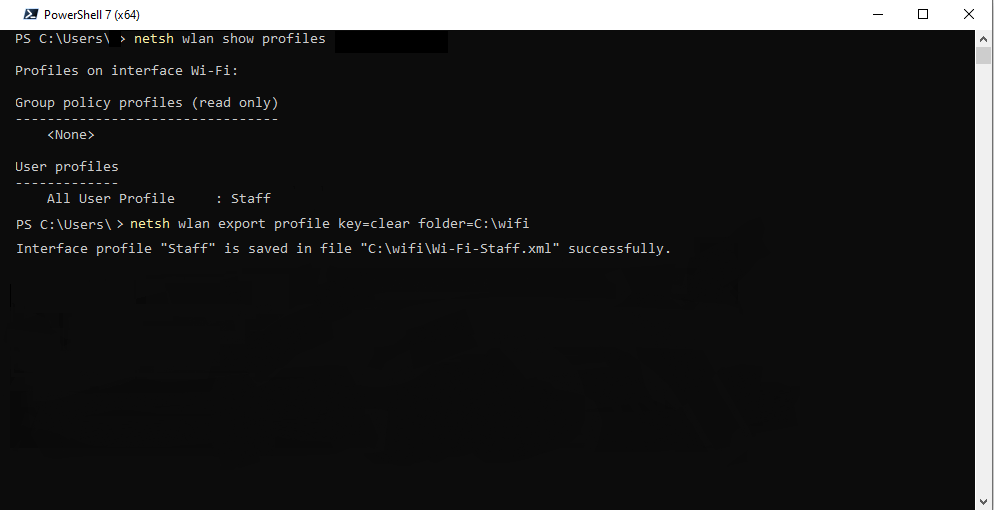
To export the profile, go ahead and type the following code
netsh wlan export profile key=clear folder=C:\wifi
A couple of things to take note of:
- The folder where you choose to export your Wi-Fi profiles needs to already exist
- The “key=clear” command will export the passphrase to the XML file. You can omit this if you choose to.
- If you have more than one profile in your list and only want to export a specific profile you can add “name=[SSID]” within the command
Create Wi-Fi Profile
Now that we have the XML file, we can continue to Configuration Manager to create the Wi-Fi profile. Navigate to Assets and Compliance>Compliance Settings>Company Resource Access>Wi-Fi Profiles and click on Create Wi-Fi Profile. We’ll walk through the Wizard to create the profile and import the XML file.
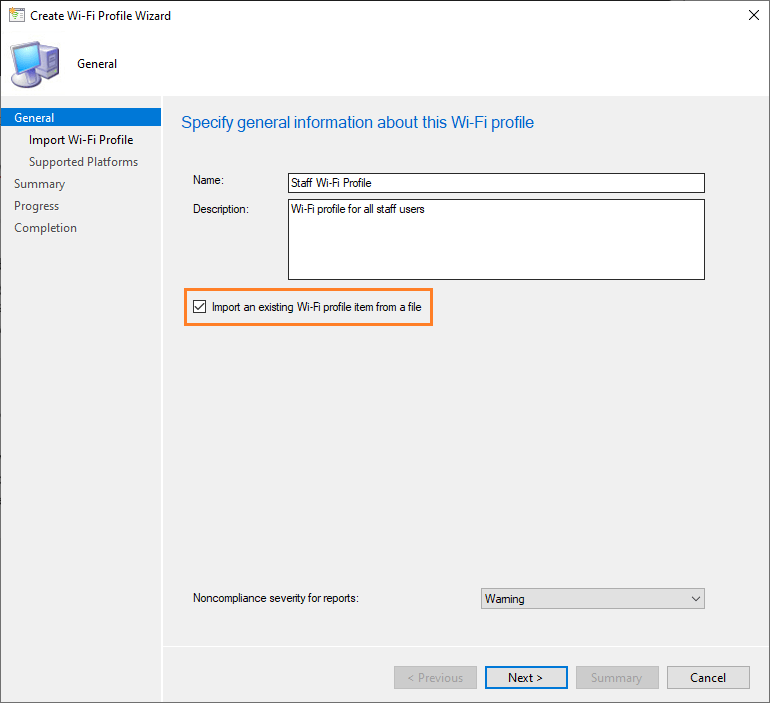
Check the box to import an existing Wi-Fi profile, give this profile a name and click Next.
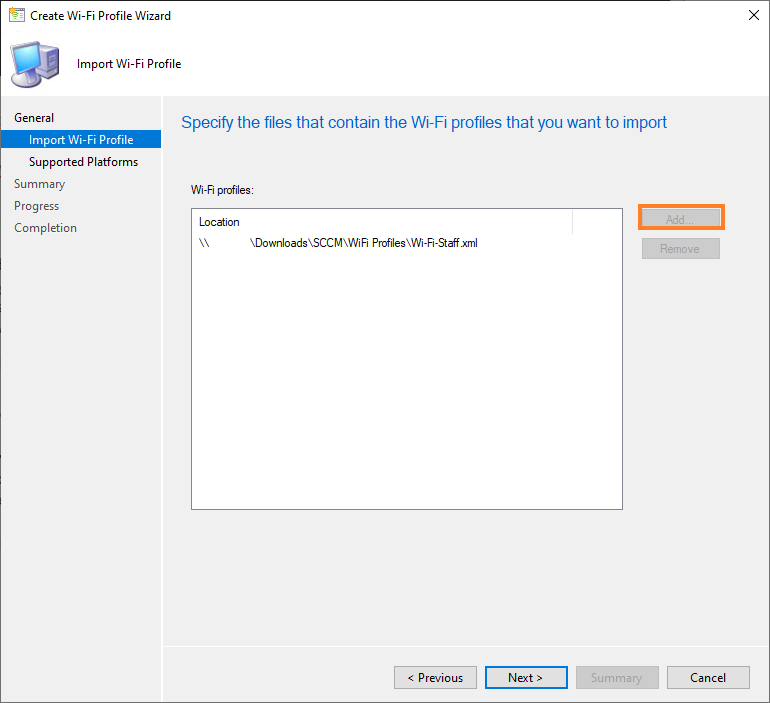
Here you will click Add to import the XML file. The file needs to be stored on a network share and not a local computer computer. Click Next.
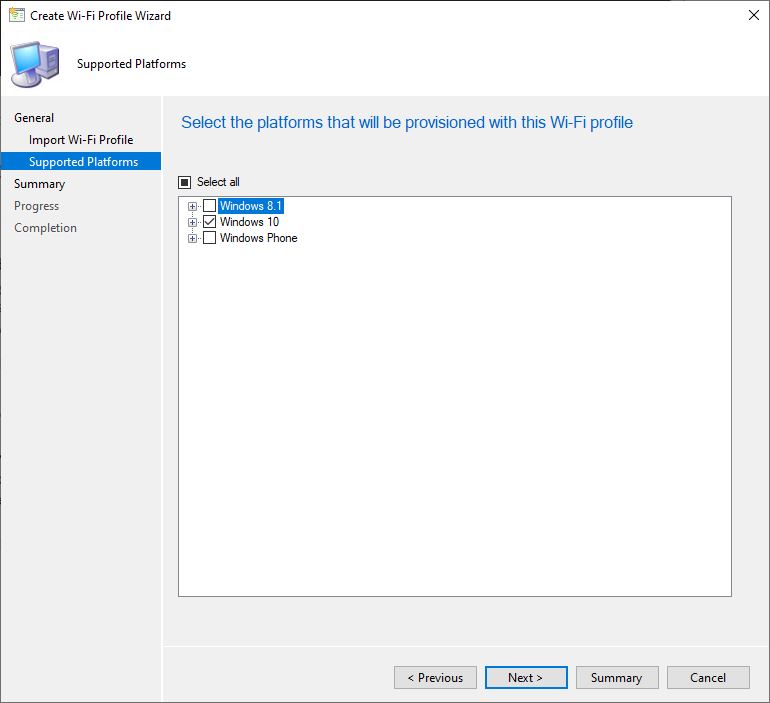
For our purposes, we will choose all Windows 10 devices and click Next.
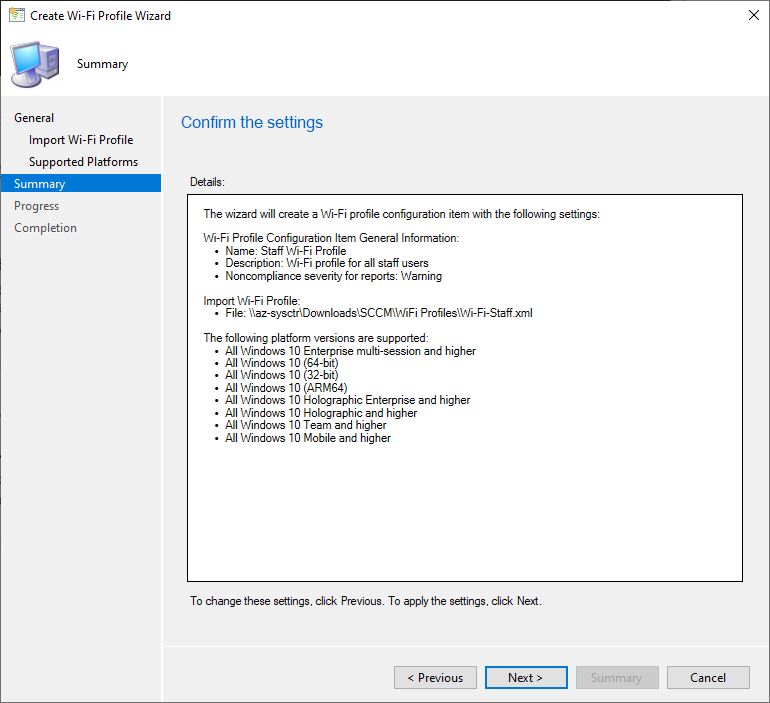
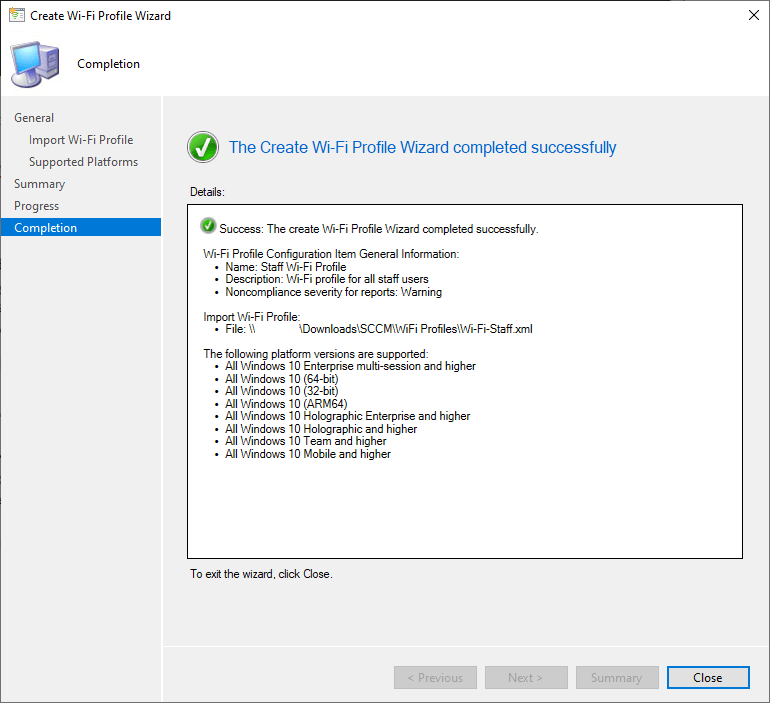
Click Next to confirm the settings and Close once the wizard successfully completes.
Deploy Wi-Fi Profile
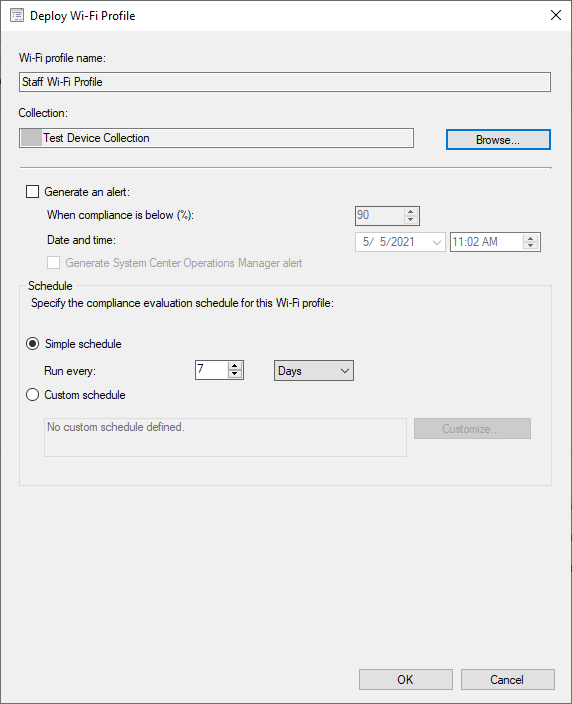
Now we can deploy the Wi-Fi profile to a selected group or all users or device collections. Right click the newly created profile and click Deploy.
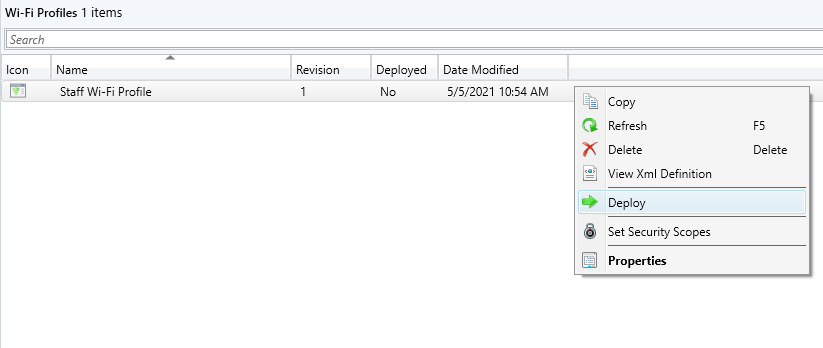
Choose the collection to which you want to deploy this profile. Here you can also setup alerts to generate and custom schedules for compliance checks.
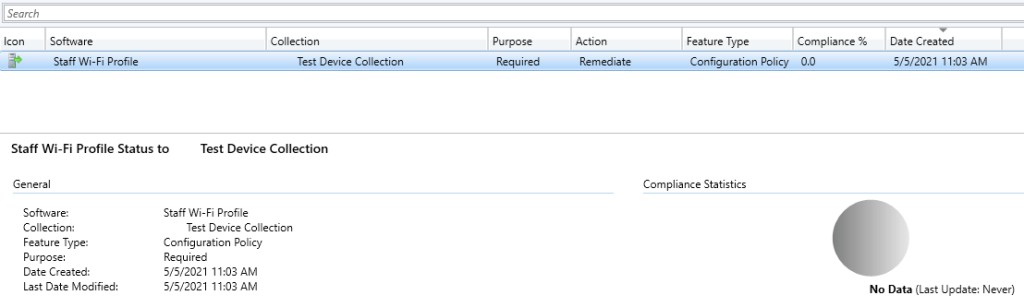
You can monitor the deployment by navigating to Monitoring>Overview>Deployments.