In this post I will talk about the restriction policies you can set with Intune to allow or deny certain types of devices from being enrolled. By default, all users are able to register their personal devices with Azure AD to access company resources. What if you don’t want to give the ability to enroll personal Windows devices with AAD? That is where Enrollment Restrictions come in. Before we actually start setting up the policy though, lets discuss the types of devices that can be found in AAD.
Azure AD Joined – a device that is corporate owned and managed, authentication can only happen using AAD, authenticated using a corporate user ID that is present in AAD
Azure AD Hybrid Joined – a device that is corporate owned and managed, authentication can happen using both on-premises AD and AAD, authenticated using a corporate user ID that is present in both on-premises AD and AAD
Azure AD Registered – a personally owned device that is corporate enabled, authentication for corporate resources can happen using a corporate user ID that is present in AAD, authenticated using a local ID or personal ID (outlook.com)
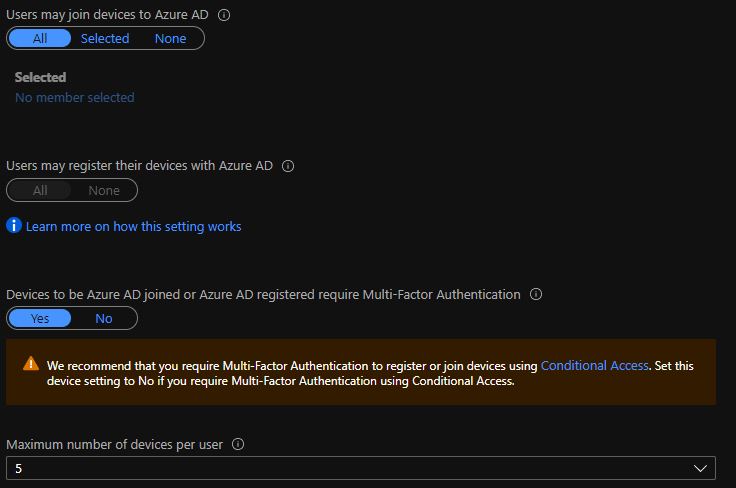
There are a two locations where you can configure the settings for enrollment into AAD. The first can be found under Devices in Azure Portal. As you can see, the settings here are very basic.
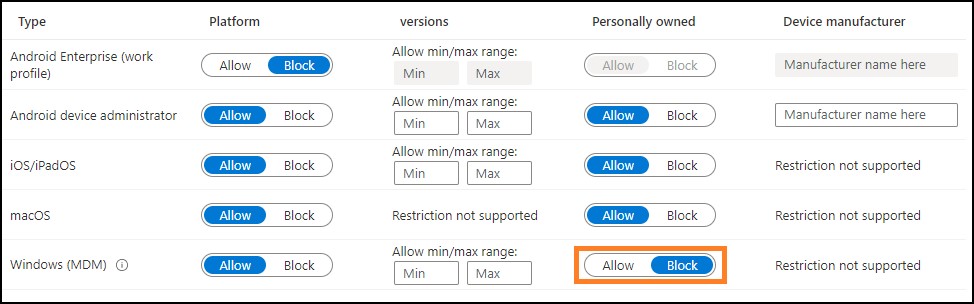
The other location can be found within the Enrollment Restrictions blade. There is a default policy already in place for All Users and All Devices that cannot be deleted so in order to prohibit the enrollment of personal Windows devices, we can make the change within this policy.
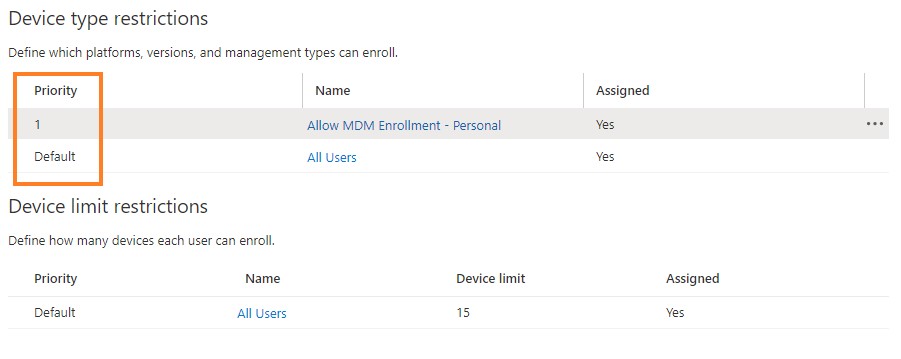
There may be the need to allow only certain groups/users to enroll their personal Windows devices with Intune. In order to allow this, we will need to create a second policy and add that specific group. As you can see, the new policy has a priority level of 1 which will override the settings set in the Default policy.
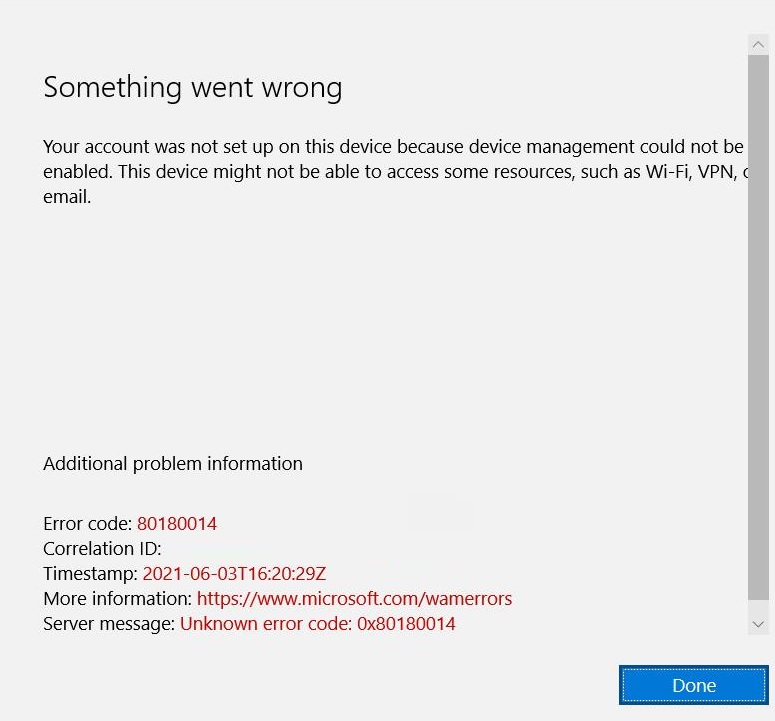
Let’s try to enroll a personal Windows 10 device with a user id that is not included in this new policy. As you can see, we get the error shown below. The settings that we created do not apply to devices that have already been registered with AAD. It’s important to test which settings you want to enforce in your environment. These configurations can block certain groups/users from accessing corporate resources like email/VPN/Wi-Fi if you are not careful.