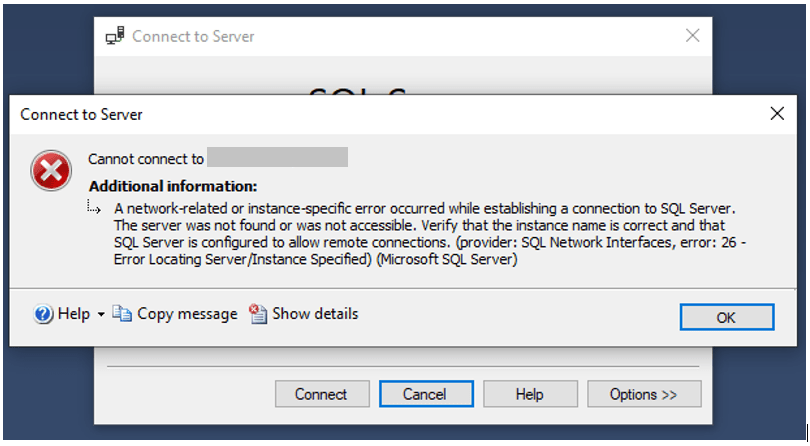
I recently setup a new SQL Server database instance and was having trouble connecting to the server remotely through SQL Server Management Studio. When trying to connect remotely, I was getting the error message below.
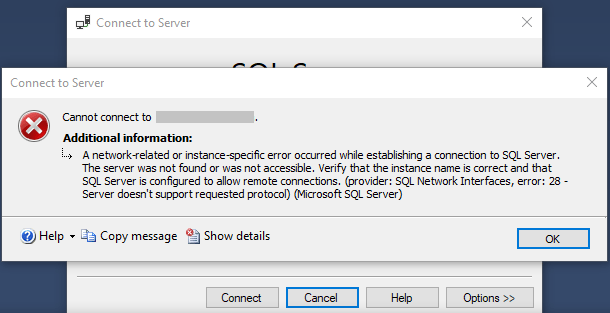
There are a few things you can check for error 28:
- A specified SQL Server instance name is not valid. Wrong SQL Server Instance Name can generate Microsoft SQL Server Error 28
- Remote access is not enabled for your SQL Server instance
- The firewall on the server has refused the connection because ports used by SQLBROWSER.EXE and SQLSERVR.EXE are still blocked
- The SQL Server Browser service (sqlbrowser) is not started
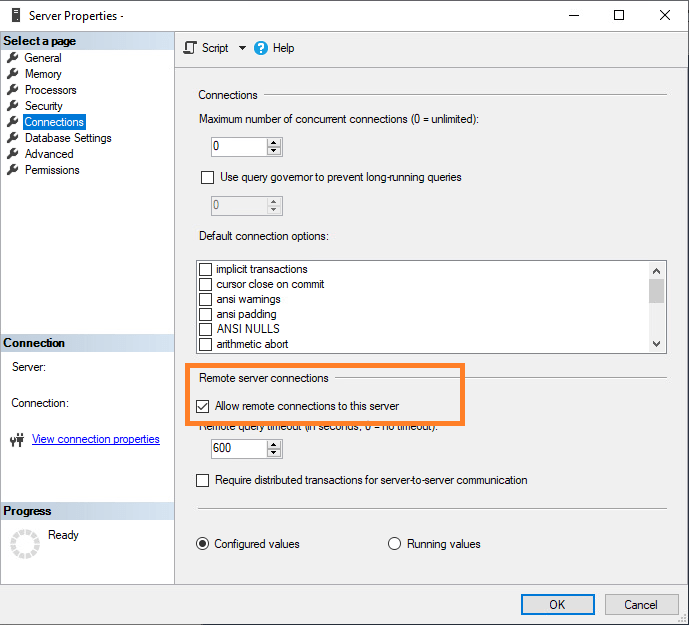
The first thing I checked was the SQL Server Browser service. This was of course already started in Services. The next thing I checked was if remote connections were enabled. This was already enabled as well.
The second thing I verified were my firewall rules. I added exceptions to allow TCP port 1433 (listening port) and UDP port 1434 (sqlbrowser service) for SQL Server. I noticed I was unable to ping my Windows machine so I also added an exception for ICMP ping protocol. After making these changes the error changed to error 40.
When showing more details of the error message, we see: Verify that the instance name is correct and that SQL Server is configured to allow remote connections. (provider: Named Pipes Provider, error: 40 – Could not open a connection to SQL Server) (.Net SqlClient Data Provider). So, this points me to check the TCP/IP and Named Pipes protocol were both enabled. To check this, you will need to open SQL Server Configuration Manager and find your database. Mine was located under SQL Server Network Configuration. Initially, they were both set to Disabled so I thought I was onto something. After enabling both Named Pipes and TCP/IP, it will prompt you to restart the SQL services. I just rebooted the server to be on the safe side. Unfortunately, I was still getting the same error.
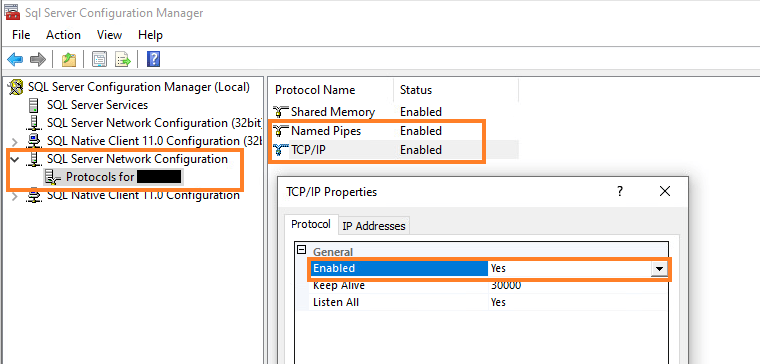
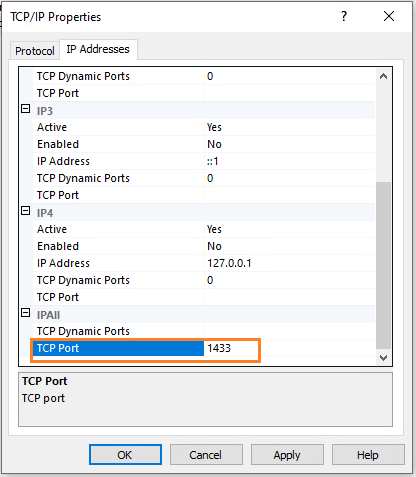
I noticed when checking under the IP Addresses tab of TCP/IP settings, TCP Dynamic Ports was enabled. I forced the TCP Port to use the default 1433 and restarted the SQL services again. After making this change, I was able to connect to the database remotely!
Troubleshooting
After making the above changes, I was able to connect to the SQL Server database remotely and make changes like normal. However, I noticed the next day I was not able to connect to the database remotely again. This time I was getting error: 26 – Error locating Server/Instance Specified. After rebooting the server, it seems to work again. I didn’t think anything of it. The day after that, I got the exact same error 26. At this point, I double checked all of the settings again. After some research, I found the reason why I was getting this error. The client stack could not receive a SQL Server Resolution Protocol (SSRP) response UDP packet from SQL Browser.
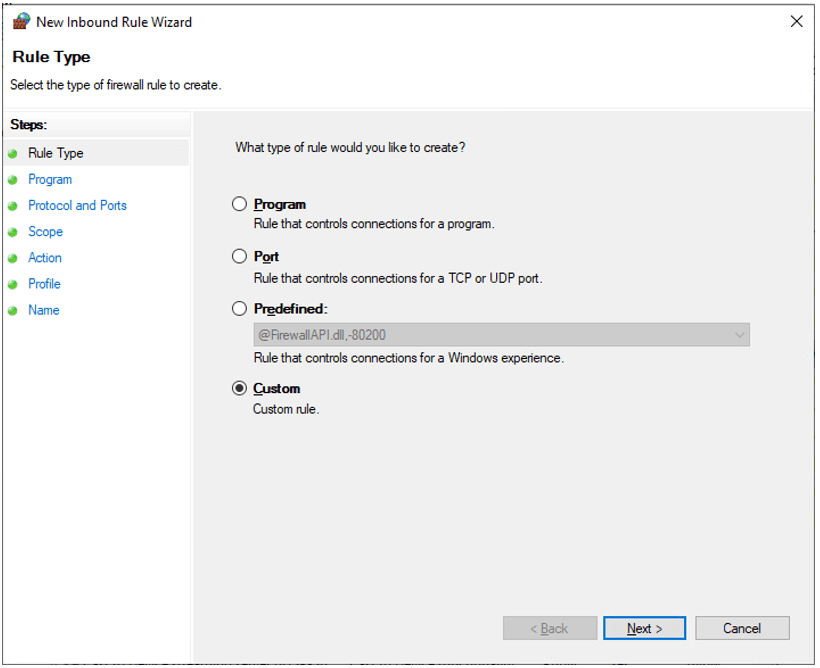
At this point, we will need to create another inbound firewall rule for all possible IP addresses that will be connecting remotely. Once you are in Windows Firewall, follow the steps below for creating a new Inbound Rule.
Select Custom and click Next
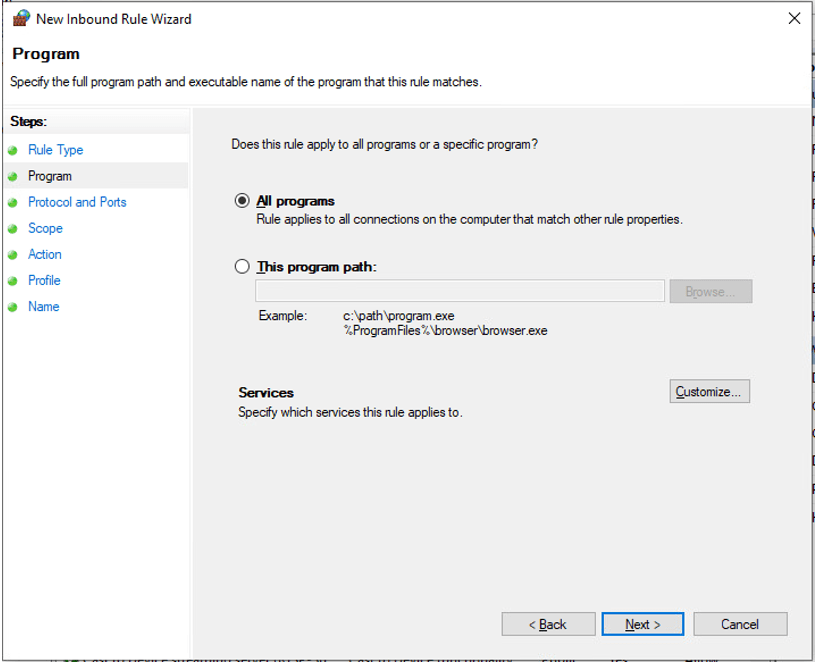
Select All Programs and click Next
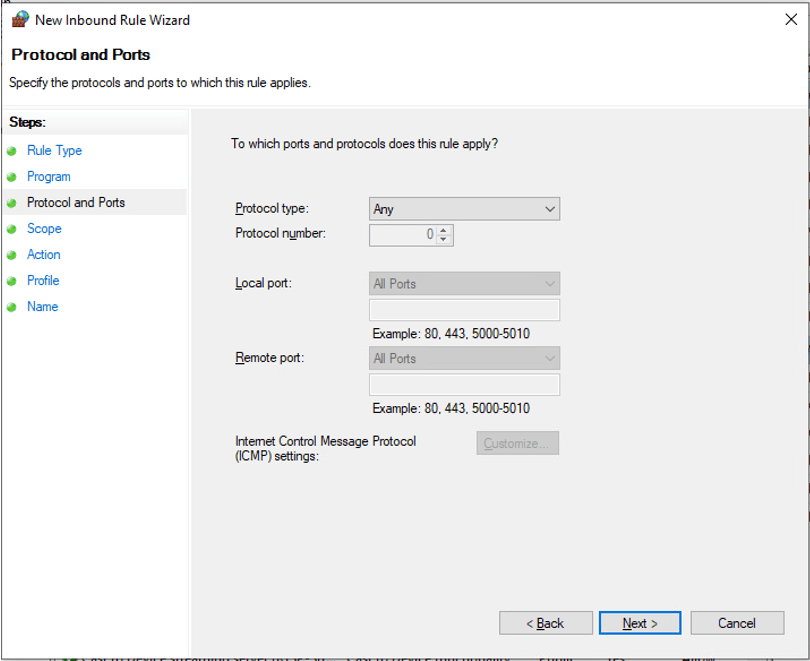
For Protocol Type, select Any and click Next
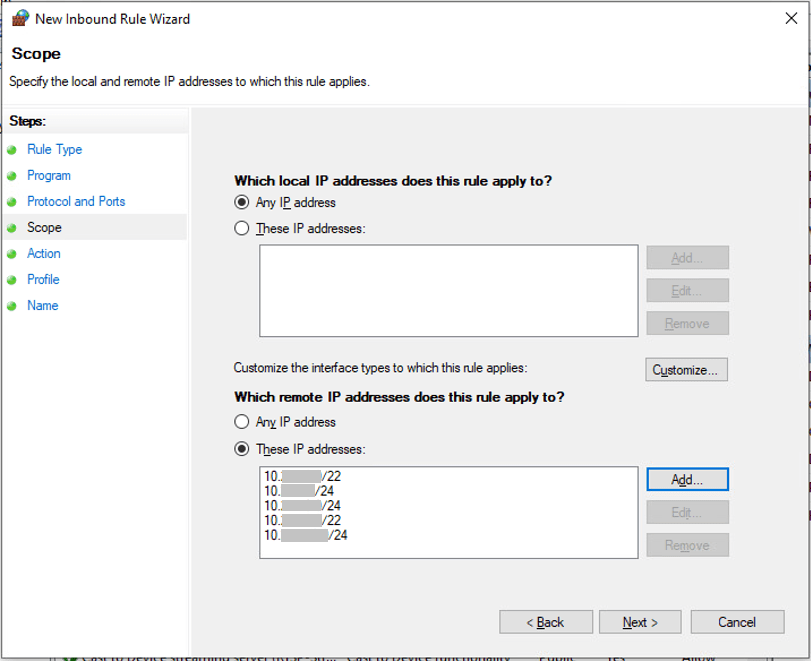
In the section, Which remote IP addresses does this rule apply to?, select These IP addresses: and click Add. Enter in the IP address subnets you wish to include in this rule. For example, 192.168.0.0/24. Click Next
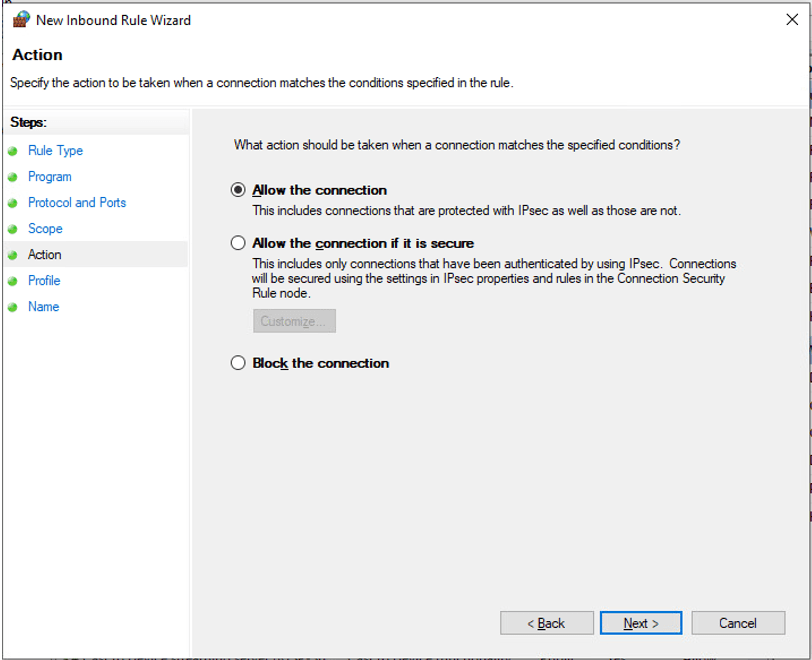
Select Allow the connection and click Next until the Rule Wizard is complete
After making these changes, you should be able to connect remotely now without any further issues.

