This will be a short but sweet post. We are using the 3CX software-based phone system in our environment and currently deploy the desktop application. We want to move to a more modern web-based application. 3CX provides a web client that can be accessed by going to the URL: https://yourcompany.3cx.us:5001/webclient/.
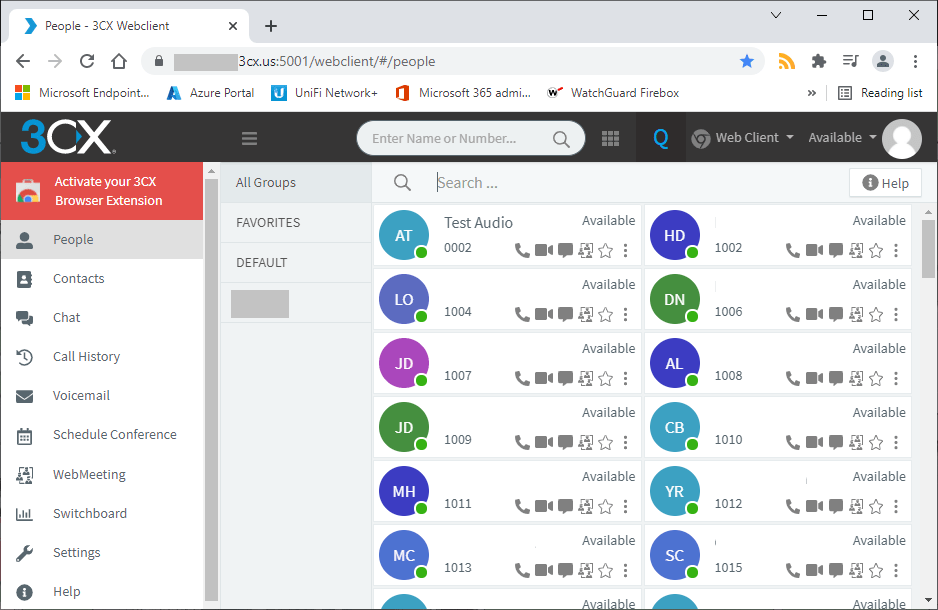
This is normally ok but we can still see the address bar, tabs, and other Chrome settings and features. We want this to look more like its own standalone application. In order to do this, we need to open this website in Chrome’s “Application Mode”.
Create Shortcut
Right click anywhere on your desktop and select New>Shortcut. In the Create Shortcut dialog box, type in the location of Chrome: “C:\Program Files\Google\Chrome\Application\chrome.exe”. At the end of this string, type: – -app=https://yourcompany.3cx.us:5001/webclient. So the entire string will look like the below.
“C:\Program Files\Google\Chrome\Application\chrome.exe” – -app=https://yourcompany.3cx.us:5001/webclient
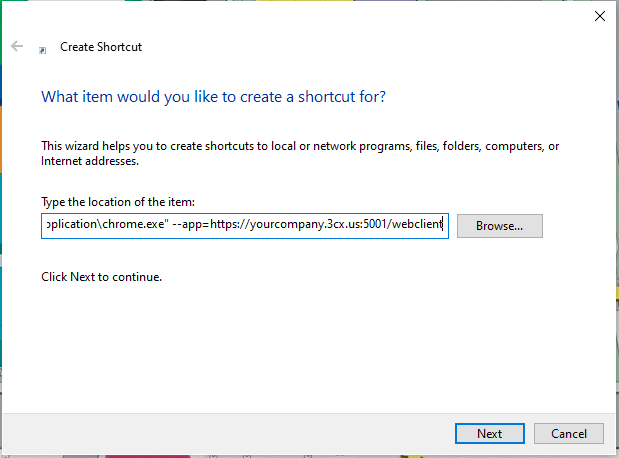
Click Next. Give your application a name and click Finish.
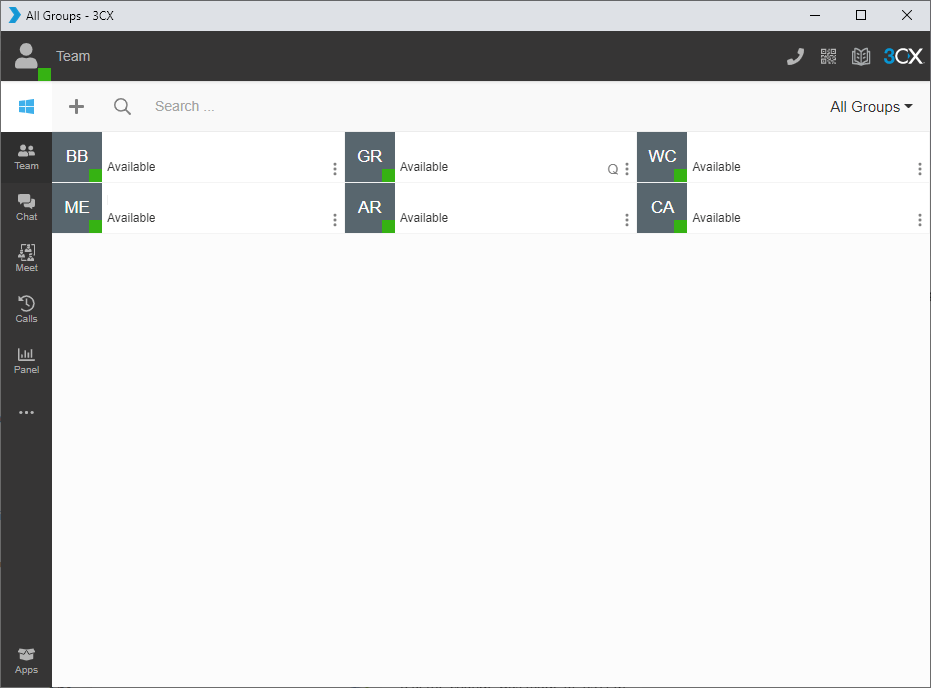
You have now created a web app. Open the shortcut you just created and you should see something similar to the image below. As you can see, this looks more like an application than a browser tab.
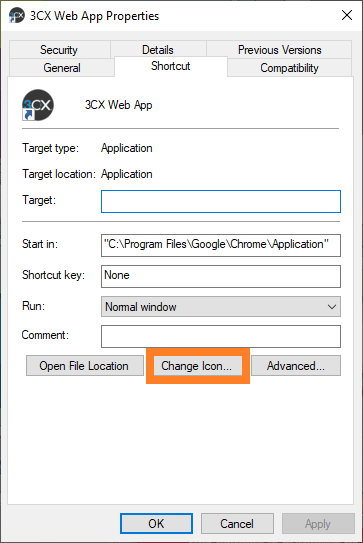
You can take it a step further and create a custom icon for this web application. If you go to https://icoconvert.com, you can upload an image and convert to a .ICO file. Once you download the .ICO file, right click on the shortcut you created and go to Properties. Click on the Shortcut tab and select Change Icon.
After adding the icon, here is the final look below.