In this article, we will be discussing one of the ways we can troubleshoot the connection from your on-premises to Azure network using the Azure Connectivity Toolkit (ACT). This collection of PowerShell commandlets will download required files to run the Get-LinkPerformance command which runs a series of iPerf load tests and PSPing TCP pings concurrently between a local source and a remote host running iPerf3 in server mode. Six tests of increasing load are performed and results are output at the conclusion of the test. For a full picture of what will be happening, take a look below.
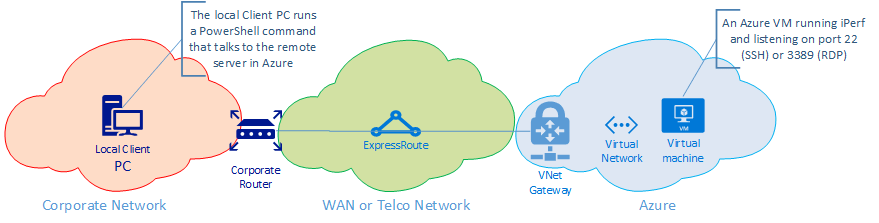
I currently have an Azure VPN Gateway service setup between our Azure tenant and our on-premises network. We are using VPNGW1 which has a throughput benchmark of 650 Mbps.
Prerequisites
There are only 3 prerequisites for this tool to run.
- An Azure virtual network with an ExpressRoute site-to-site connection or a VPN connection to another (on-premises) network
- A remote host running iPerf in server mode (iperf3.exe -s) with local firewall allowing port 5201 (iPerf traffic) as well as the admin port (3389 for Windows or 22 for Linux) open for the TCP ping traffic
- A client PC (or server) running running PowerShell 3.0 or greater on the on-premise network that can reach the remote host
Install
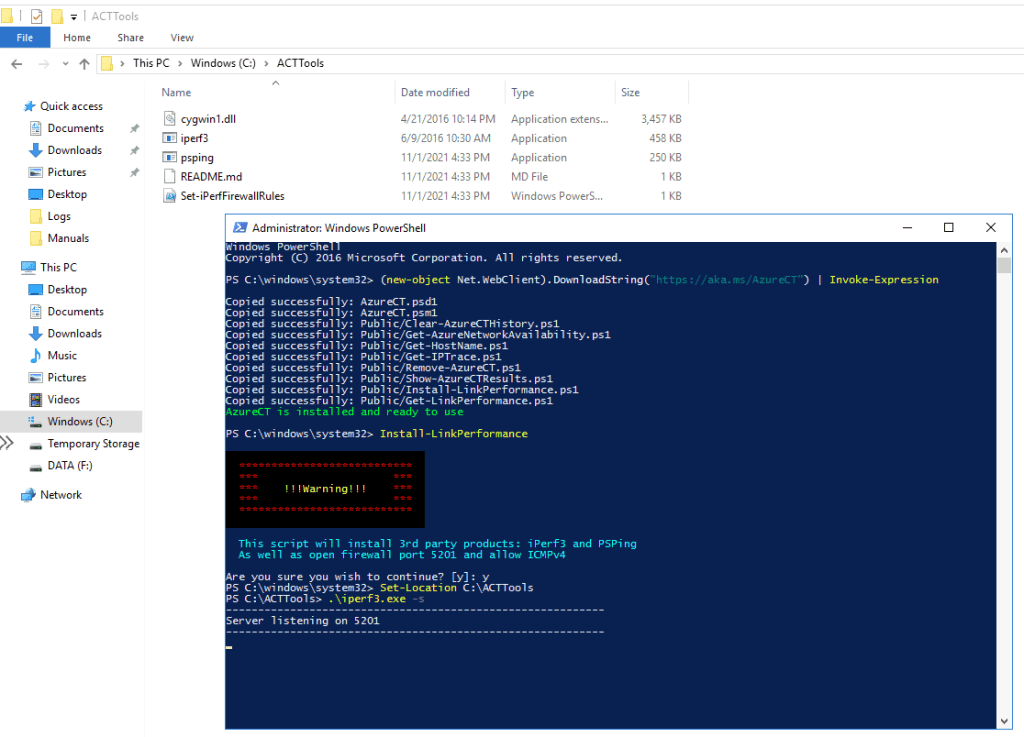
To begin, open PowerShell as administrator and run the following command on both machines on each end of the network to install AzureCT PowerShell module:
(new-object Net.WebClient).DownloadString("https://aka.ms/AzureCT") | Invoke-Expression
This will install the following PowerShell cmdlets:
- Get-AzureNetworkAvailability
- Clear-AzureCTHistory
- Show-AzureCTResults
- Get-HostName
- Get-IPTrace
- Remove-AzureCT
- Install-LinkPerformance
- Get-LinkPerformance
If you get the following error:
Exception calling “DownloadString” with “1” argument(s): “The request was aborted: Could not create SSL/TLS secure channel.”
We will need to tell PowerShell to use TLS 1.2 before calling for DownloadString. Use the following command:
[Net.ServicePointManager]::SecurityProtocol = [Net.SecurityProtocolType]::Tls12
Then run the original DownloadString command again.
Once that completes its steps, type the following to download PSPing and iPerf. This step will also configure your Windows Firewall to allow iPerf and ICMP.
Install-LinkPerformance
Running the Tool
Now that you have the tools installed on both machines on each end of the network, we need to start iPerf in server mode on the remote machine. Take a look at the below image to see a graphical representation of how the entire process should go for a remote host being set to server mode.
Now on the local client PC, run the below command to begin the tests:
Get-LinkPerformance -RemoteHost 10.10.10.8 -TestSeconds 10
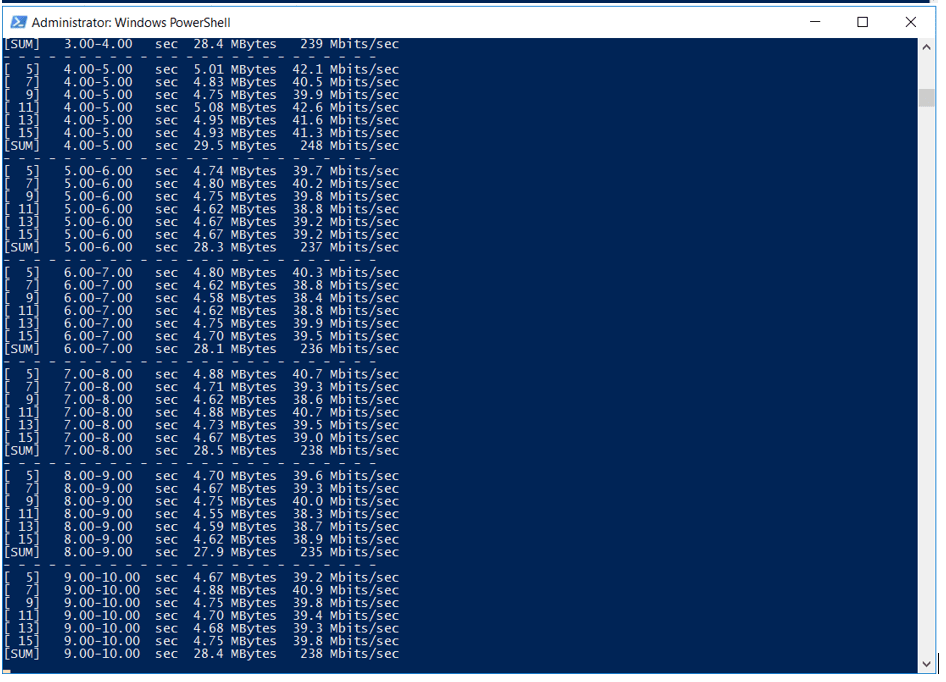
Here is how the results will look. It is recommended you reverse the steps and run the test the opposite way as well.
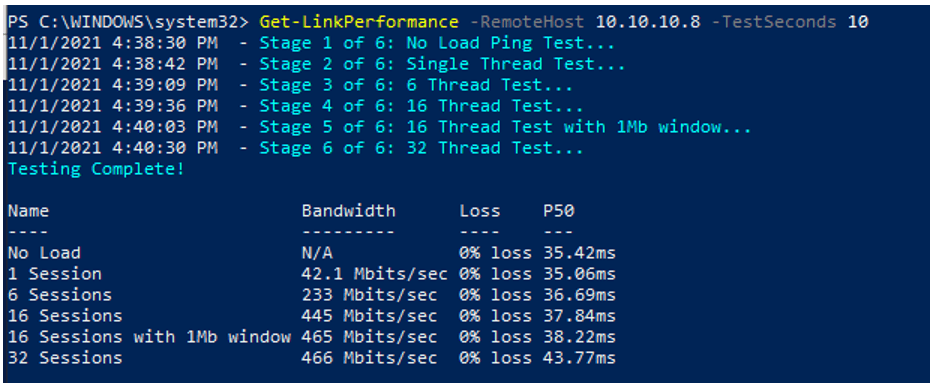
You can follow along on the remote machine as well to see the actual test it is running.
More References
For more information regarding Azure Connectivity Tools you can follow the links below:
https://github.com/Azure/NetworkMonitoring/blob/main/AzureCT/PerformanceTesting.md
https://docs.microsoft.com/en-us/azure/expressroute/expressroute-troubleshooting-network-performance

