When trying to create a new distribution point site server, you may come across different errors that you are not familiar with. In this post, I will outline a few steps you can do if you encounter any of the problems.
Errors
The log file we need to check for errors is distmgr.log. You might see some of the errors outlined below.
CWmi::Connect() failed to connect to \\NEWDPSERVER.company.com\root\CIMv2. Error 0x800706BA
DPConnection:ConnectWMI() – Failed to connect to \\NEWDPSERVER.company.com
Failed to connect to DP WMI provider
Also, if you check the Monitoring tab in SCCM, you may see this error for your new distribution point.
Distribution Manager failed to install distribution point …
Possible cause: Distribution Manager does not have sufficient rights to the computer.
Solution: Verify that the site server computer account is an administrator on the distribution point computer.
Troubleshooting
Here are some steps you can implement to try and resolve these issues.
- Ensure the primary site server computer account is added to the Administrators group of the new distribution point server
- Verify you enable File and Printer sharing in Firewall by adding app exception
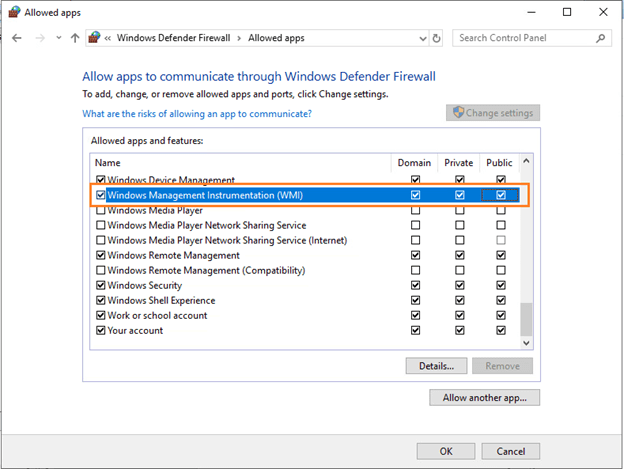
- Verify you enable WIM in Firewall by adding app exception
- Verify time settings
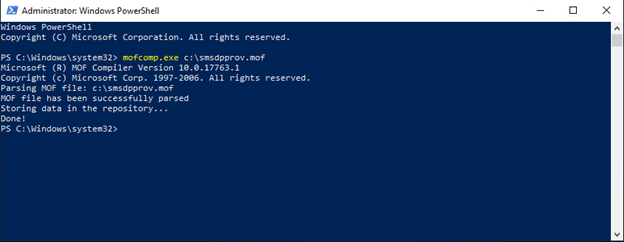
- Copy smsdpprov.mof from C:\Program Files\Microsoft Configuration Manager\bin\X64 to C:\ of the new distribution point server. Open CMD and run “mofcomp.exe c:\smsdpprov.mof”
Some of these are self explanatory, but I will explain for the other steps. First, lets add the File and Printer sharing and WIM exceptions in Windows Firewall.
Open Windows Defender Firewall and click on “Allow an app of feature through Windows Defender Firewall”. Scroll down to File and Printer sharing and check the box for Domain and do the same for Windows Management Instrumentation (WMI).
Secondly, we need to copy smsdpprov.mof from C:\Program Files\Microsoft Configuration Manager\bin\X64 on the primary site server to C:\ of the new distribution point server. Open CMD and run “mofcomp.exe c:\smsdpprov.mof”. Here is the outcome below.
Conclusion
These are the only issues I came across when deploying a new distribution point server and these are the fixes that helped me. I hope they can help you too!

