
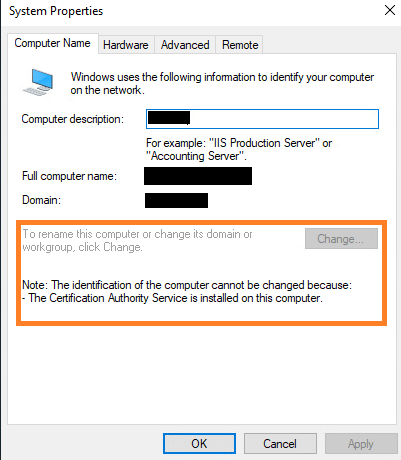
Today I had to generate a new certificate in our Certificate Authority and came across the message: The trust relationship between this workstation and the primary domain has failed. In case you weren’t aware, the best practice for a CA is to keep it powered off unless you are using certificate services. As you can imagine, this can cause issues with domain communication if it is powered off for too long. To fix this issue in the past, I’ve always just logged in with the local administrator password and moved the machine from the domain to a workgroup, restart, and rejoin to the domain. This process seems to have worked fine for years so I never questioned it. Today, I learned that we cannot remove a CA from the domain. What now?
First, we need to understand what the Trust Relationship message means. This basically is telling us that the secure channel between the workstation or server is no longer available to the domain controller. When you first join a computer to the domain, you use a domain administrator account to complete the process and a computer object is created with a device password on the domain controller. So, all we need to do is provide a domain administrator password again to reset the computer account password. Alright, enough talking. Let’s get into it.
Reset Computer Account Password
Open PowerShell with elevated permissions (Administrator) and type the following command:
Reset-ComputerMachinePassword -Server DomainController -Credential DomainAdministrator
-Server – for this switch, type the FQDN of any domain controller
-Credential – for this switch, use a domain administrator account or a domain user with permissions to join domain
Example:
Reset-ComputerMachinePassword -Server mydomain.domain.com -Credential johnDA
When prompted for your domain admin credentials, go ahead and enter them. There is no confirmation after this command is run so just go ahead and login with a domain account. There is no need to reboot the machine either.
Note: I am using PowerShell version 5.1.17763.1971

