This post will outline how to setup SSO for the Office 365 web portal when using Google Chrome. I was asked to make the login process to the Office web portal for our users as seamless as possible. I began doing some research and came across some pretty cool Chrome extensions.
Windows 10 Accounts Extension
The only extension you will need to install is the Windows 10 Accounts extension by Microsoft. As described by Microsoft, If you have a Microsoft supported identity on Windows 10, you won’t be required to enter your credentials to sign in to supported websites.
The Windows 10 Accounts extension can be found here: https://chrome.google.com/webstore/detail/windows-10-accounts/ppnbnpeolgkicgegkbkbjmhlideopiji.
To install the extension sitewide, we will need to create a GPO and configure the list of force-installed apps and extensions for Google Chrome. First, we need to download the Google Chrome Enterprise bundle so we can import the ADM/ADMX templates into Group Policy Management. You can download the Google Chrome Enterprise bundle from here.
Group Policy
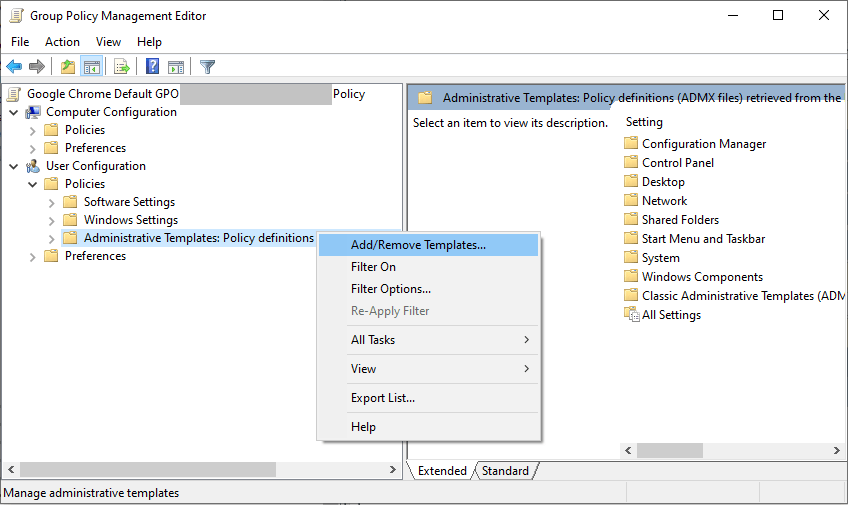
Create a GPO and right click on it to choose Edit. Go to User Configuration>Policies, right click on Administrative Templates and select Add/Remove Templates.
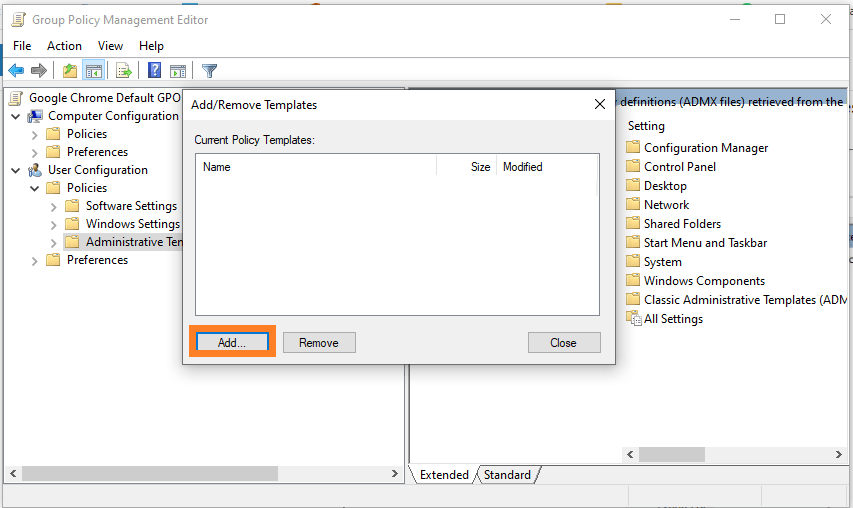
Click on Add.
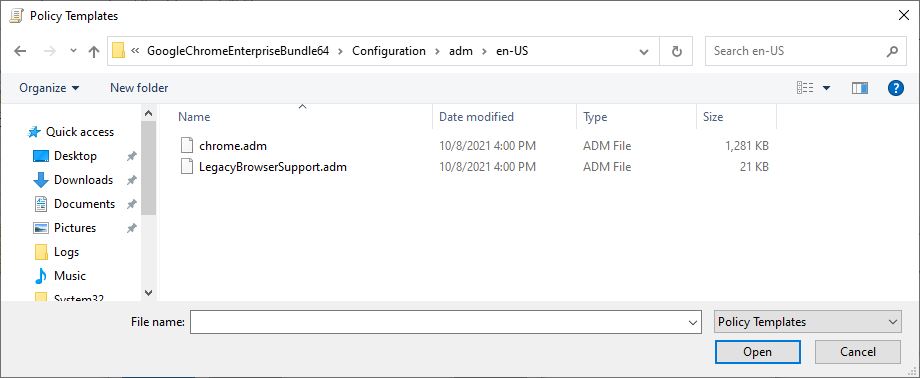
Browse for Chrome.adm file and click Open. Click Close on the Add/Remove Templates dialog box once it is added.
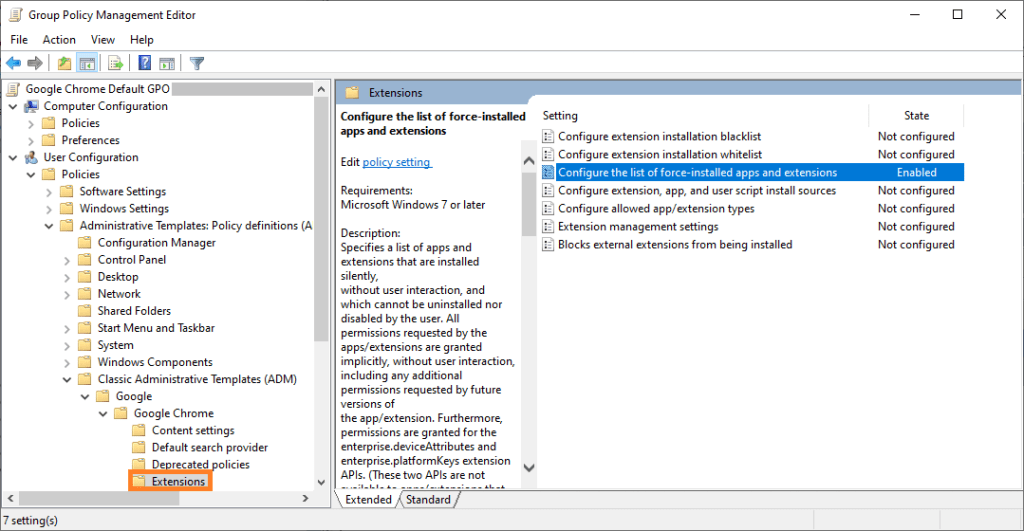
Navigate to User Configuration>Policies>Administrative Templates>Classic Administrative Templates (ADM)>Google>Google Chrome>Extensions and open Configure the list of force-installed apps and extensions on the right-hand side.
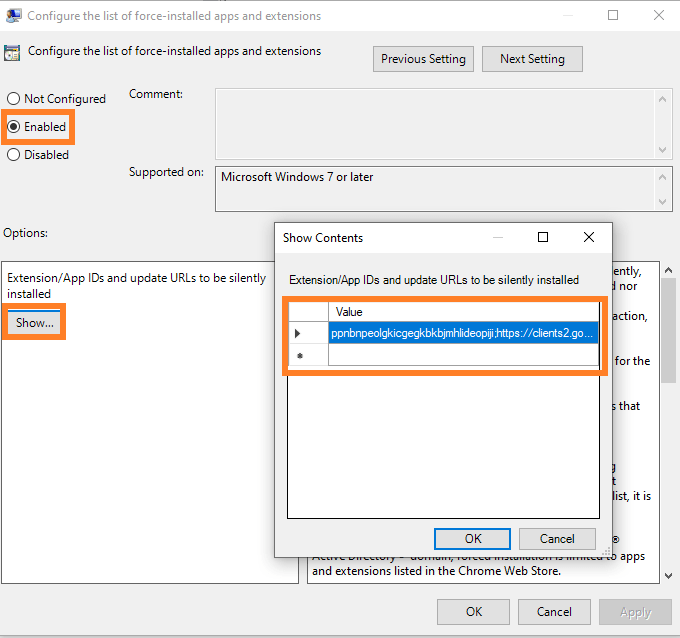
Click Enabled and then click on Show. Add the following for Value: ppnbnpeolgkicgegkbkbjmhlideopiji;https://clients2.google.com/service/update2/crx
After I deployed this GPO, SSO was still not working as expected for Office.com. We were still being required to type in the email address. But, if we go to the link: https://portal.office.com/?domain_hint=%5Bdomain.org%5D, it would work as we expected. So we also added that as the homepage for Google Chrome.
Note: [domain.org] is your organizations domain.

