I was recently asked to recover deleted items from a former employees mailbox. When I went to the Exchange Admin Center I noticed the Recover Deleted Items option for the mailbox was greyed out. We need to grant ourselves the appropriate permissions in order to recover deleted items. These permissions are not handed out to any user or administrator by default.
Add Role Group in EAC
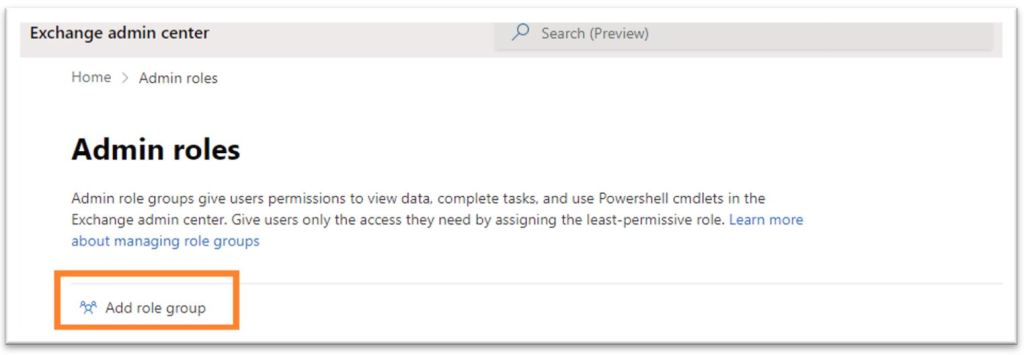
The admin role that we need to create is the Lets navigate to the Admin roles section of EAC. You can click here or select Roles>Admin roles in EAC.
Click Add role group
Add a name and description for the new role and click Next.
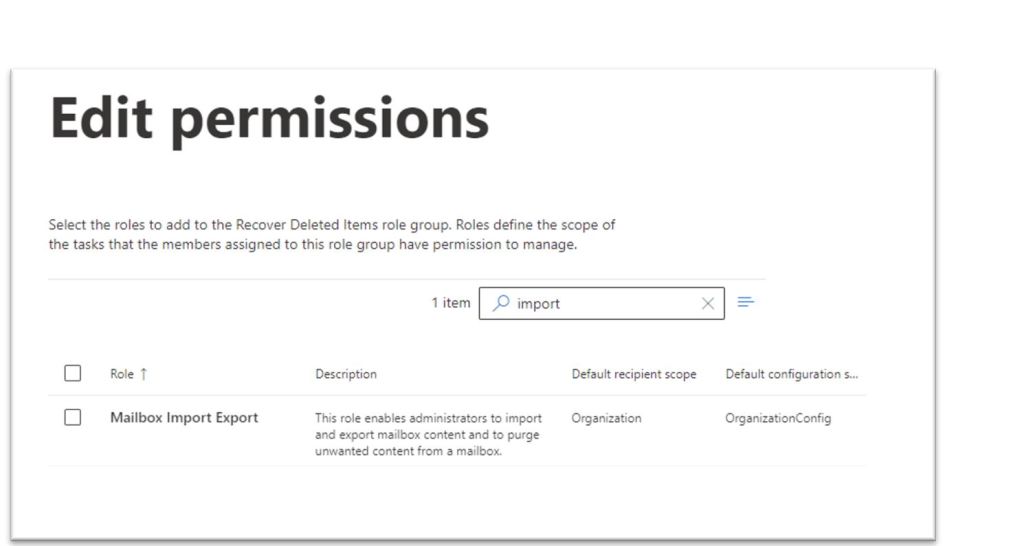
In the Permission section, search for Mailbox Import Export and check it. Click Next.
In the Admins section, add the administrators that will require this access and click Next.
On the Review and finish section, click Finish.
This can take up to an hour to complete.
Recover Deleted Items
Now that we have the access we need, lets test restoring an email.
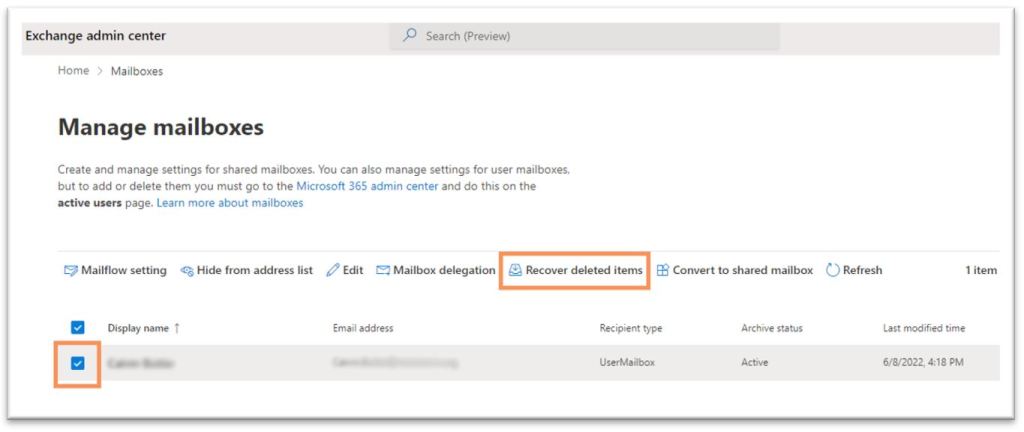
Go to Recipients>Mailboxes and search for a user you wish to restore.
Click on Recover Deleted Items
Choose your date range and select the items you wish to recover
Click Recover deleted items
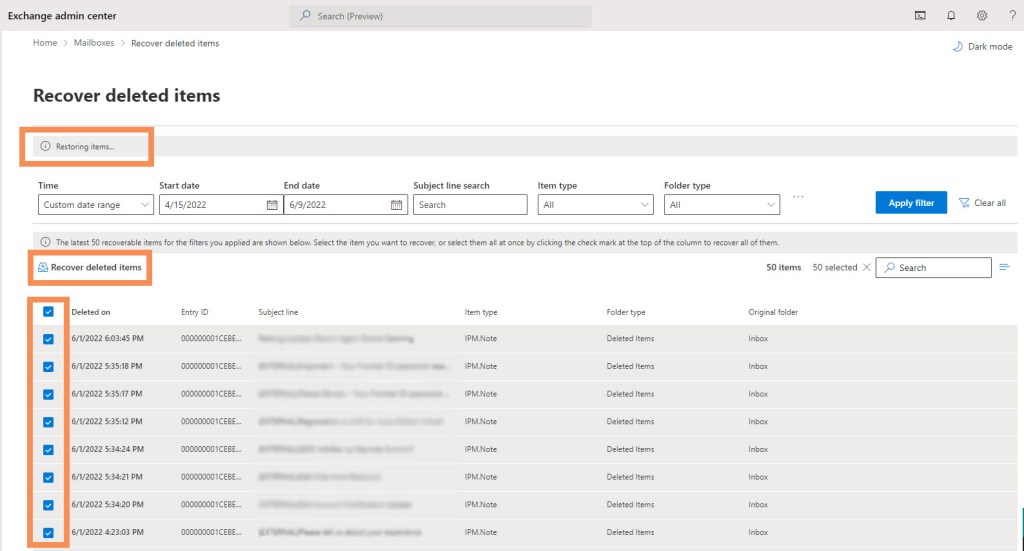
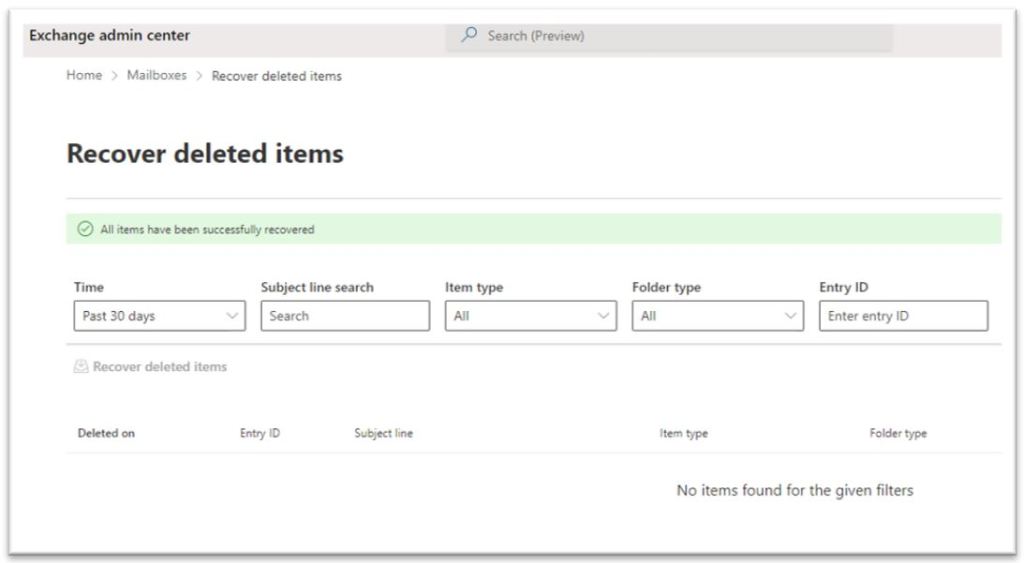
Once you select Recover delete items, you will see a Restoring items… message at the top of the page. You can only restore 50 items at a time. Once the restore is complete, you will see a green bar with the message below
PowerShell Commands
To use the Exchange Online module, open PowerShell as admin and type:
Connect-ExchangeOnline
To see how long items are retained for a specific mailbox, type:
Get-Mailbox [username] | Format-List RetainDeletedItemsFor
To verify the role assignment was completed, type:
Get-RoleGroupMember -Identity “Name of role group”

