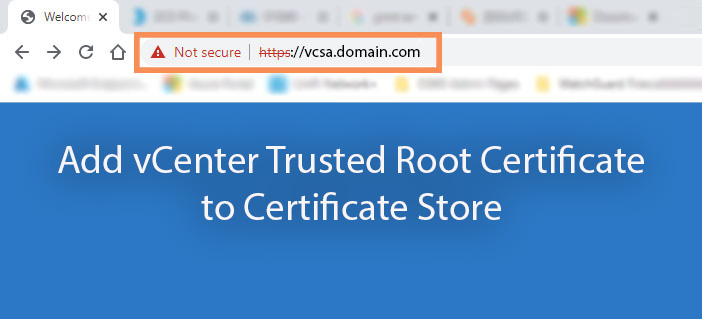
When you go to your vSphere Client on your web browser, you may notice the following messages below:
- Your connection to this site is not secure
- This connection is untrusted
- The connection is not private
- There is a problem with this website’s security certificate
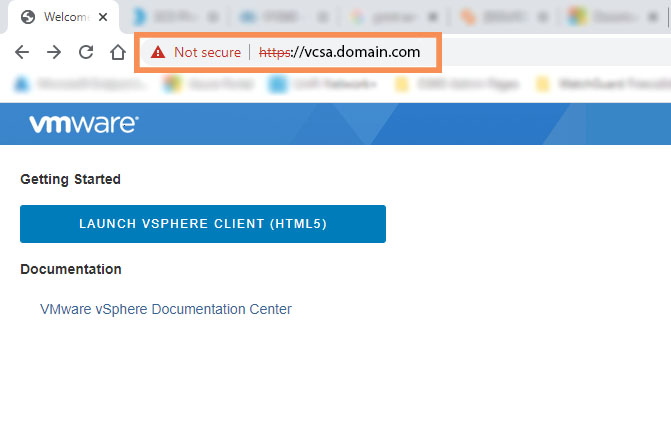
There are other messages you may be seeing, but the resolution is the same. We need to download the trusted root certificate from the vCenter Server system and install it to your certificate store.
You can download the zip file by navigating to https://vcsa.domain.com/certs/download.zip
Note: vcsa.domain.com is an example of your vCenter Server Application name.
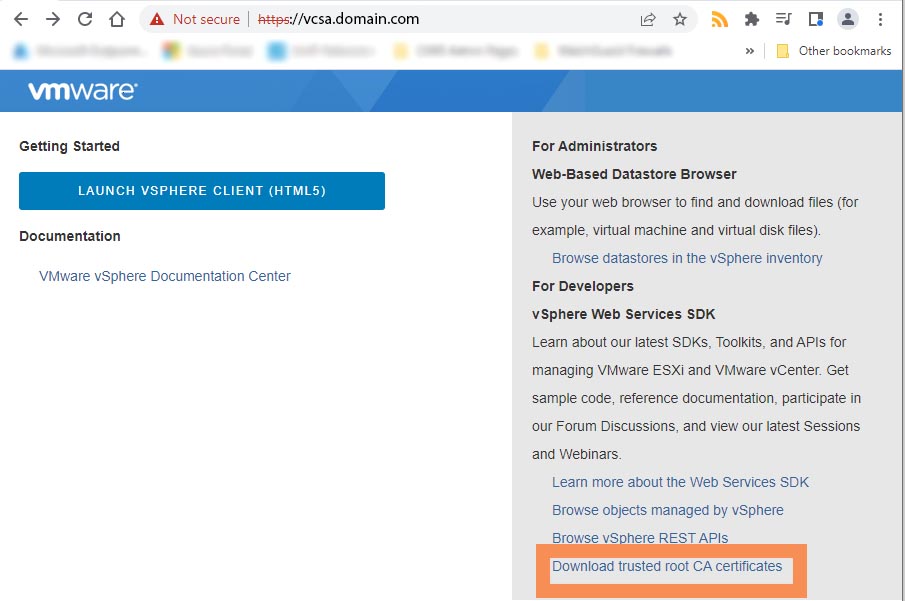
or you can right click on the Download trusted root CA certificates link on the vSphere Client home page and save the zip file:
Once you’ve downloaded the zip file, extract it. You will notice the files containing the root certificate and CRL files.
The files ending in .0, .1 and so on are root certificates. Files ending in .r1, .r2 and so on are CRL files associated with a certificate.
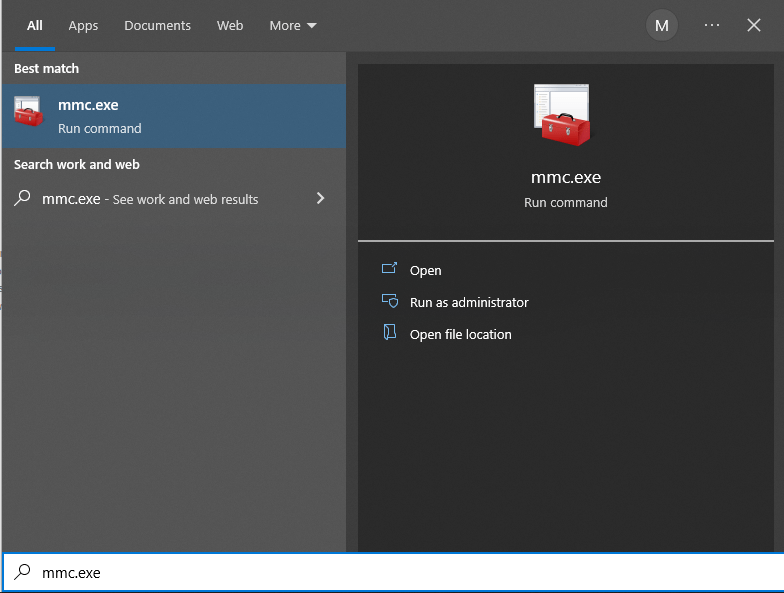
Run the Microsoft Management Console (mmc.exe) by clicking the Start button and typing in mmc.exe or typing the Windows+R keys on your keyboard and typing mmc.exe
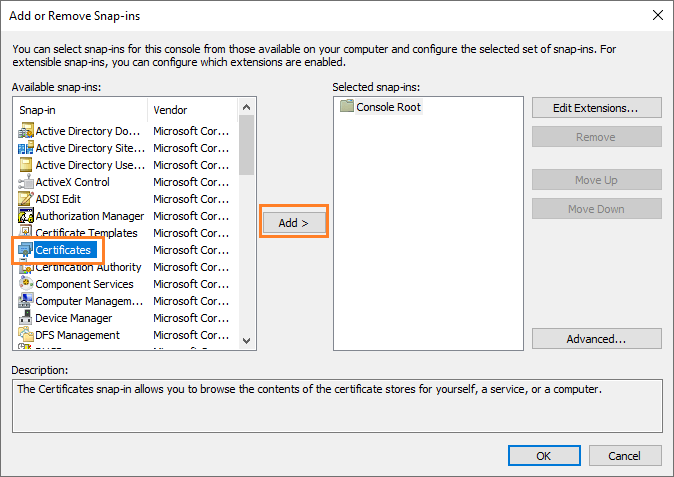
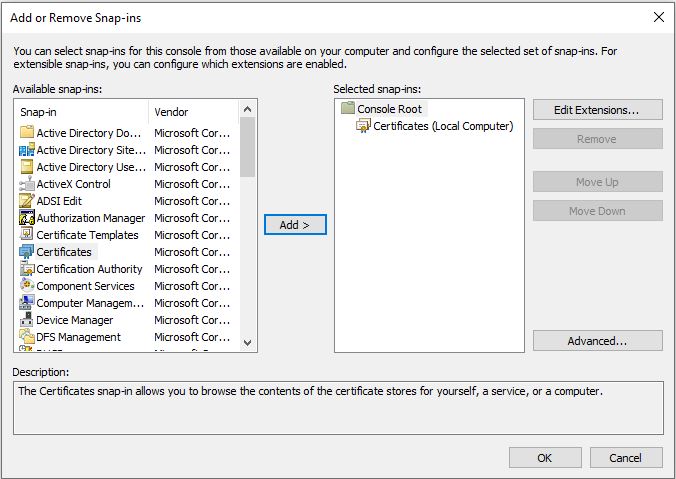
Once mmc.exe is open, click File>Add/Remove Snap-ins. Select Certificates and click Add
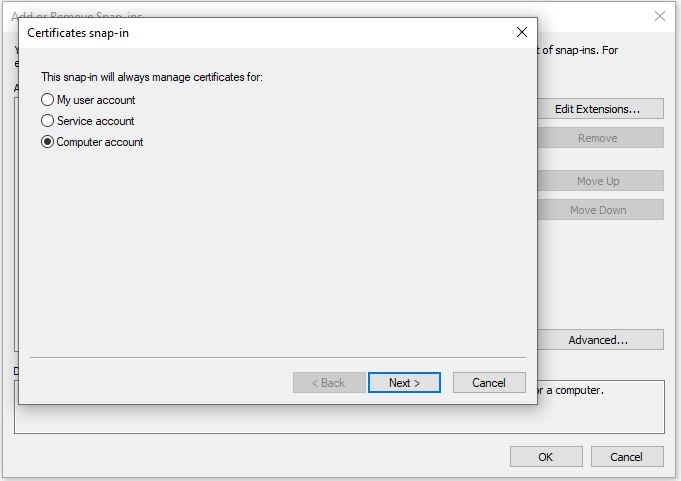
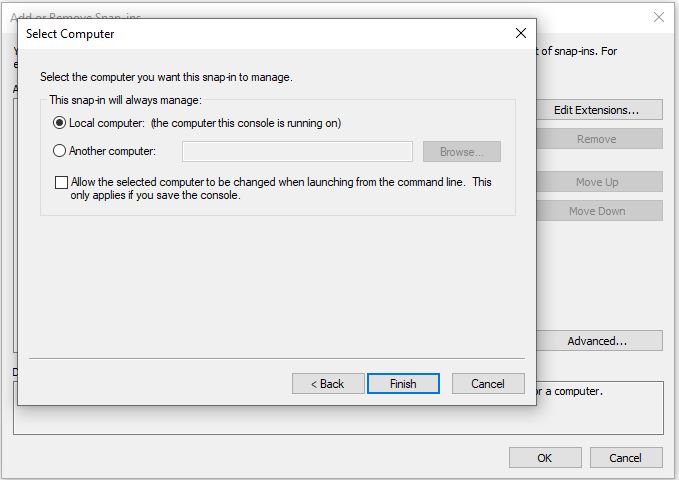
Select Computer Account > click Next > select Local computer > click Finish
Click OK
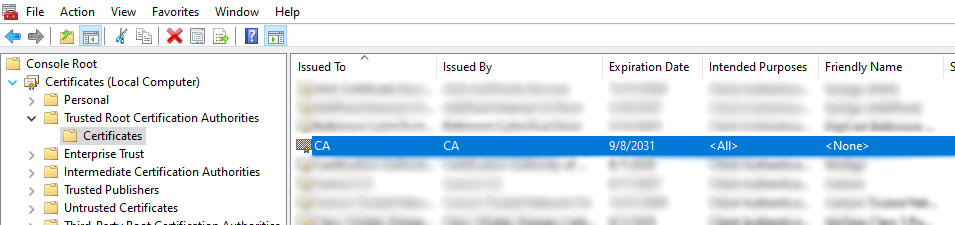
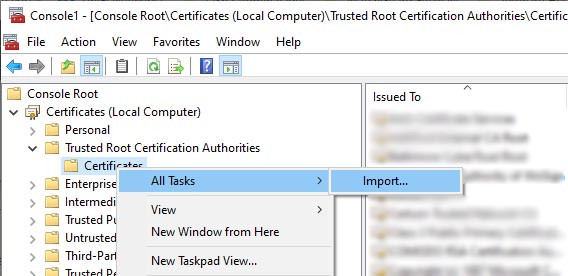
Navigate to Console Root>Certificates (Local Computer)>Trusted Root Certification Authorities and right click on Certificates, select All Tasks>Import
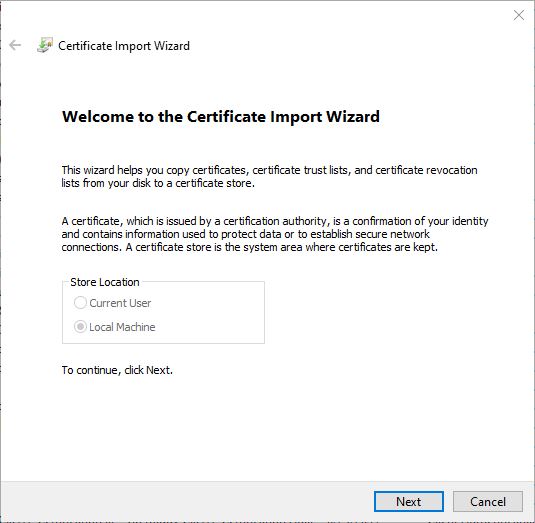
Click Next
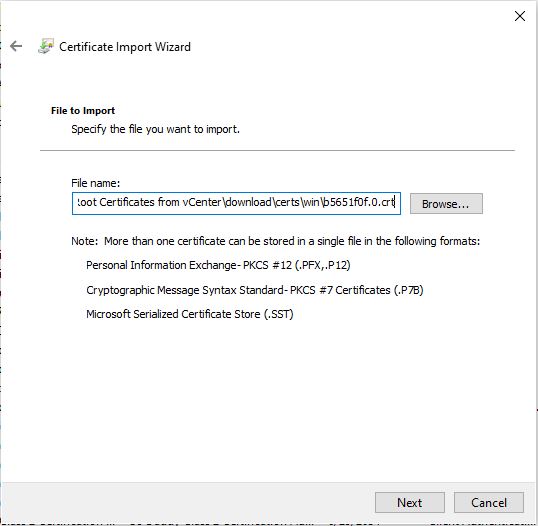
Navigate to the location where you saved the certificates and select the .crt. Click Next
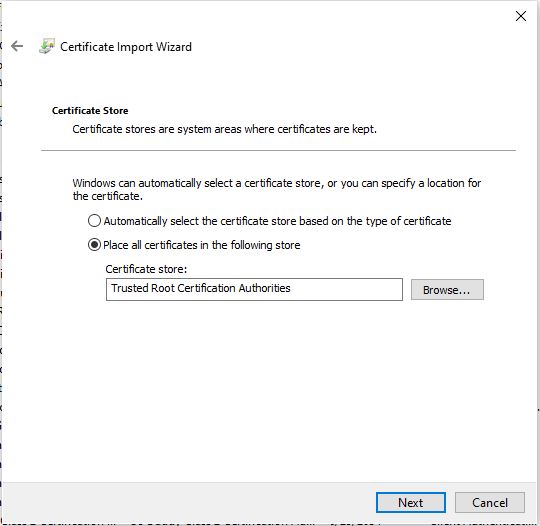
Place all certificates in the Trusted Root Certification Authorities and click Next
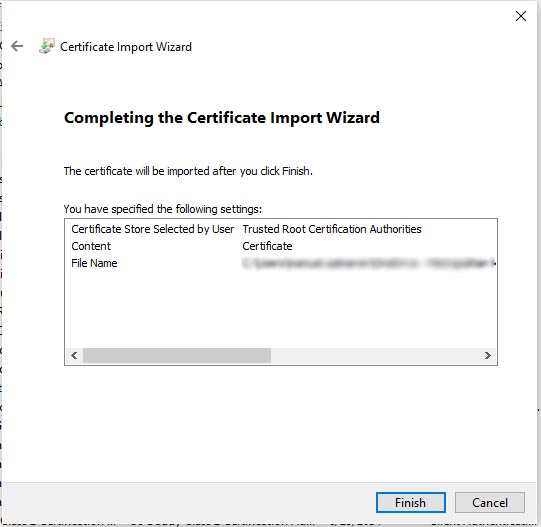
Click Finish
Click ok
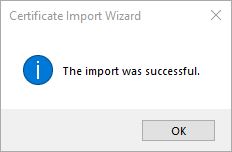
Verify the certificate was imported