In this post we will use if else statements in PowerShell to validate that an application is not currently installed and then proceed to install it. There are many ways to prove that an application already exists on a device. I will be using the application’s registry key. Let’s get started.
You can use Get-Item to verify that a registry key exists, for example:
Get-Item -Path “HKLM:\Software\App”
This will get the key and show the values as well. It’s important to note that Get-Item will not work if you try to get any entries, it will only work for keys.
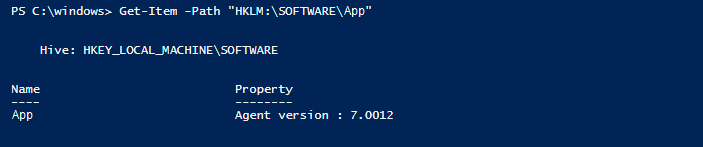
This is a good way to get the details of a key that already exists but we will get an error if the key does not exist and the script will stop. Instead, we can use Test-Path. Test-Path will give us a $True or $False depending on the presence of the key. For example:
Test-Path -Path “HKLM:\Software\App”
Test-Path does not work well with all PowerShell providers. For example, you can use Test-Path to test the path of a registry key, but if you use it to test the path of a registry entry, it always returns $False, even if the registry entry is present.
Let’s wrap this into an if else statement and see some results. Try changing the HKLM:\Software\App to a registry key already in your Registry. The output should say the app is already installed. Now try changing the HKLM:\Software\App to a key that you know for sure does not exist like HKLM:\Software\InvalidKey. It should now give you the else statement saying the app will now be installed.
if (Test-Path -Path “HKLM:\SOFTWARE\App”) {
Write-Host App is already installed, stopping
}
else {
Write-Host App will now be installed
}
We can now see the script coming together and you can feel free to change the else statement to install an application using MsiExec.exe. Add a new line under “Write-Host App will now be installed” and add the application’s msi and appropriate arguments:
if (Test-Path -Path “HKLM:\SOFTWARE\App”) {
Write-Host App is already installed, stopping -ForegroundColor Yellow
}
else {
Write-Host App will now be installed -ForegroundColor Green
Msiexec.exe /i “App.msi” /qn /norestart
}
Alternate Methods
If you need to match the value, you can use the script below. This checks the key HKLM\Software\App and the value “Agent version”. “Agent version” is split into two words so we need to wrap it in single quotes.
$val = Get-ItemProperty -Path hklm:software\app
if($val.’Agent version’ -eq ‘7.0.0.2’) {
Write-Host Agent is current -ForegroundColor Green
}
else {
Msiexec.exe /i “newagent.msi” /qn /norestart
}
You can also use the command below if you only need to see what the version is:
Get-ItemPropertyValue -Path HKLM:\Software\App -Name “Agent version”

