This will be a quick post outlining the steps needed to extend the AD schema in order to create custom attributes. This will require Schema Administrator or Enterprise Administrator rights. The Schema Master holder DC will also need to be online and available. Let’s get started.
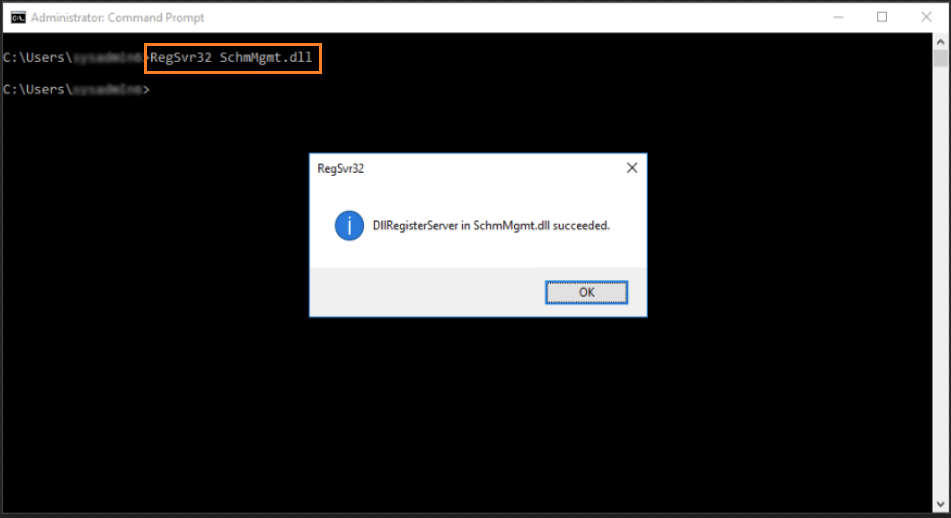
Launch an elevated Command Prompt, type the following and press Enter to register the Schema Management DLL:
RegSvr32 SchmMgmt.dll
Now, launch the Microsoft Management Console by typing MMC.exe in the Start Menu or the Run dialog box by pressing the keys Windows + R
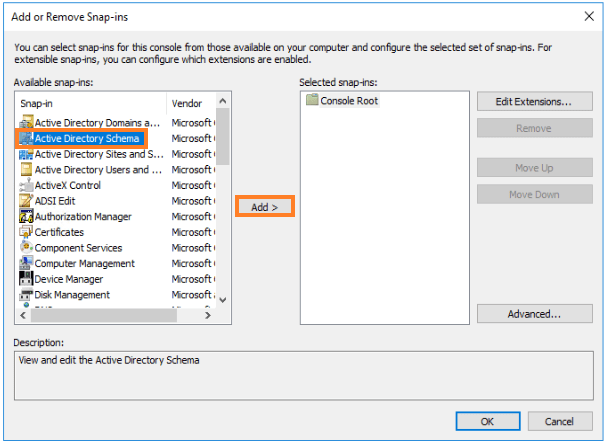
In MMC, click File>Add/Remove Snap-In
You should now see Active Directory Schema, select it and click Add. Click Ok
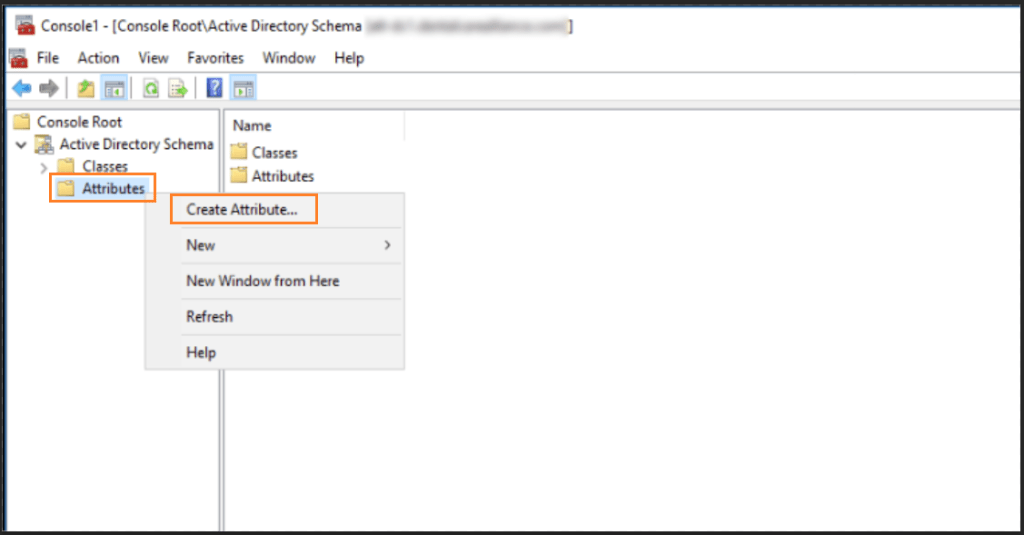
Narrow down to Active Directory Schema>Attributes, right click Attributes and select Create Attribute
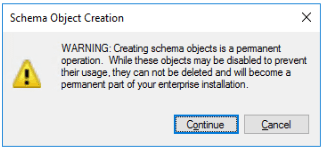
You will be shown a warning since these changes are permanent. Read the warning carefully
In the Create New Attribute dialog box, enter in the details of the new attribute
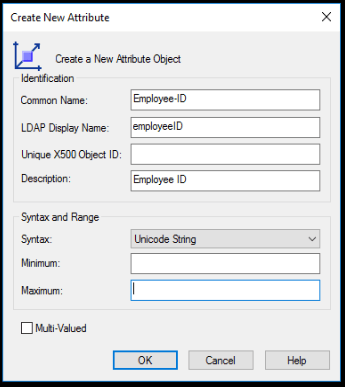
Common Name: The name of new attribute
LDAP Display Name: Auto-filled by the Common Name. Notice the hyphen has been removed automatically
Unique x500 Object ID: See below for more information
Syntax: Unicode String is most commonly used
You can also specify the minimum and maximum length of characters
Unique X500 Object ID
To extend the AD schema successfully, you will need to obtain a root OID. Microsoft has provided a script will generate one for us
The script can be found here: https://learn.microsoft.com/en-gb/windows/win32/ad/obtaining-an-object-identifier-from-microsoft?redirectedfrom=MSDN
Copy the script from the Microsoft website and paste into Notepad. Save the file as .vbs and double-click it to generate the unique ID
Once you have the unique ID, paste it into the Unique X500 Object ID field
Update User Class
Now that we have created the new attribute, we need to assign it to the User class attribute
Narrow down to Active Directory Schema>Classes>User and double-click
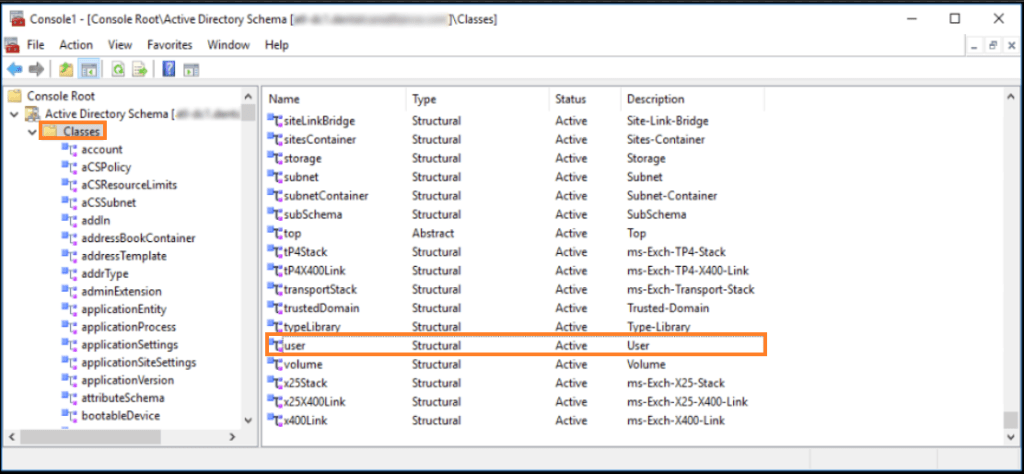
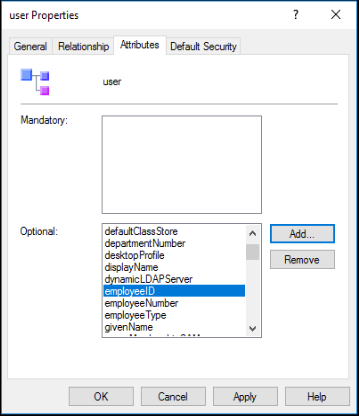
In the user Properties dialog box, select the Attributes tab and click Add to search for and add the newly created attribute. Once it has been added, click OK
At this point, you will need to wait for the new attributes to be replicated to all other domain controllers
You may need to restart the Active Directory Domain Services in Services.msc for Shema changes to take effect
To view the new attributes in Active Directory, make sure you have Advanced Features enabled and you are viewing the user object directly from the OU. If you attempt to search for a user object, the Attributes tab will not appear
You can also use PowerShell to search for the attribute:
Get-ADUser username -Properties newattribute

