In this post, we will outline the steps needed to delete an email message from a single or all user mailboxes. Imagine an email is sent to the wrong group of users containing the pay rate of another employee. We can use the Content Search option in the 365 Compliance Portal but this will only allow us to see the emails. In order to delete the emails we will need to use PowerShell.
Steps for Exchange Online
First, we need to import the Exchange Online Management PowerShell module
Import-Module ExchangeOnlineManagement
Next, we need to connect to the 365 Security and Compliance PowerShell with a Global Admin account. If a Global Admin account is not available, the roles required are outlined below
To perform mailbox searches, the user will need to be a member of the eDiscovery Manager role group or be assigned the Compliance Search role
To delete messages, the user will need to be a member of the Organization Management role group or be assigned the Search and Purge role
Now that we have the correct permissions, lets connect to the Security and Compliance PowerShell using the Connect-IPPSSession cmdlet in the Exchange Online PowerShell module
Connect-IPPSSession -UserPrincipalName adminuser@mycompany.com
Now that we are connected, we can create a new compliance search. You can create a compliance search from the Compliance portal and use PowerShell to run the purge command. For this post, I will walk through creating the compliance search through PowerShell commands. First, I will explain what each parameter does
- Name: Type a name for the new search
- ExchangeLocation: You can use a single mailbox, group, or all to search all mailboxes
- -ExchangeLocation useraccount@mycompany.com
- -ExchangeLocation “Accounting Department”
- -ExchangeLocation accountingdepartment@mycompany.com
- -ExchangeLocation All
- ContentMatchQuery: Use this to filter by subject, sender, and date sent
New-ComplianceSearch -Name SearchName -ExchangeLocation All -ContentMatchQuery ‘subject:”Change your passwords!” AND sent:01/23/2023 AND from:user@mycompany.com’
The new compliance search has now been created but we still must start the search
Start-ComplianceSearch -Identity SearchName
You can check the status in the compliance portal or type the following:
Get-ComplianceSearch -Identity SearchName
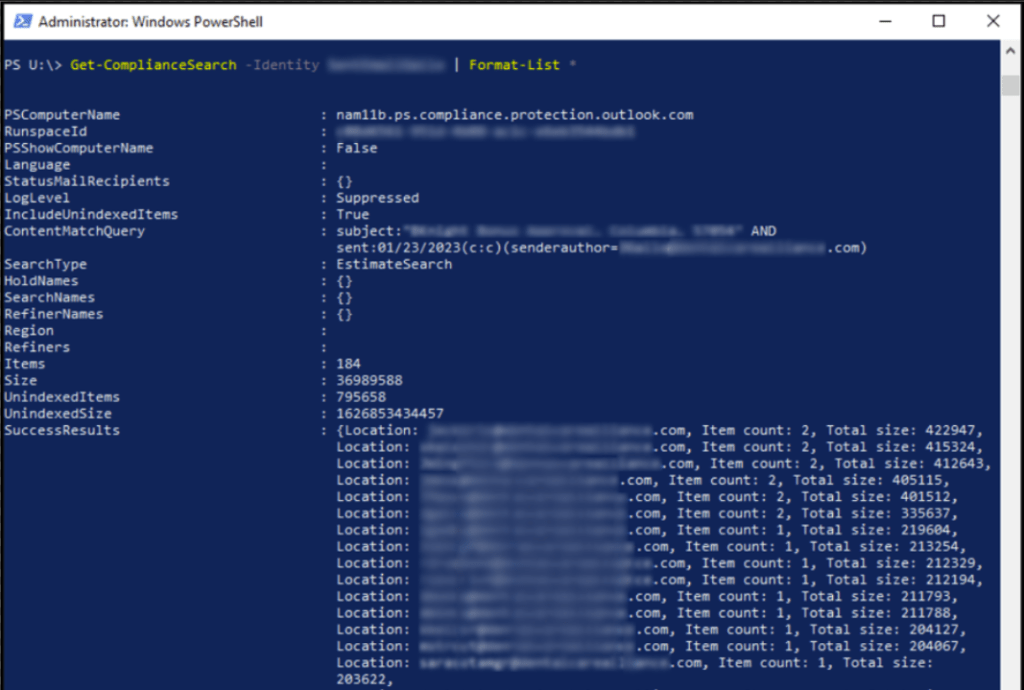
Once the search has completed, you can preview the message in the compliance portal and get the details of the search in PowerShell
Get-ComplianceSearch -Identity SearchName | Format-List *
You can see the item count of email messages here (example: Items = 184)
Now we can delete the emails that match the search criteria
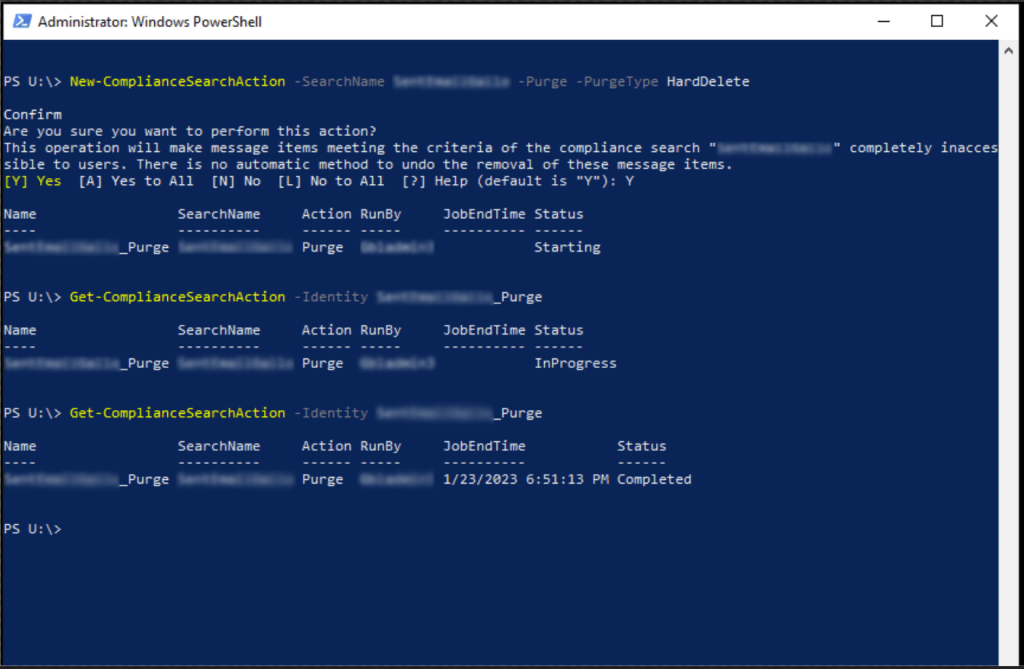
You can choose to do a soft delete or a hard delete. A soft delete will place the email in the users Recoverable Items folder. A hard delete will permanently delete the message. You will be prompted to confirm the purge action.
New-ComplianceSearchAction -SearchName SearchName -Purge -PurgeType HardDelete
The purge job will commence at this point. You can check the status of the purge by using the following command:
Get-ComplianceSearchAction -Identity SearchName_Purge
or get a more comprehensive status by using:
Get-ComplianceSearchAction -Identity SearchName_Purge | Format-List *
Remember to disconnect from the PowerShell session or you can be forced to wait until the session expires before connecting again.
Disconnect-ExchangeOnline
Steps for Exchange Server
First, lets looks at the permissions and access required to complete the steps in Exchange Server
The user account performing the compliance search and actions will need the Mailbox Search management role. Administrators aren’t assigned this role by default. To assign yourself this role, you will need to add yourself as a member of the Discovery Management role group.
The user account performing the search must also have a mailbox assigned or you will receive the following error when attempting to create a search:
Unable to execute task. Reason: Failed to retrieve executing users. Please try again later.
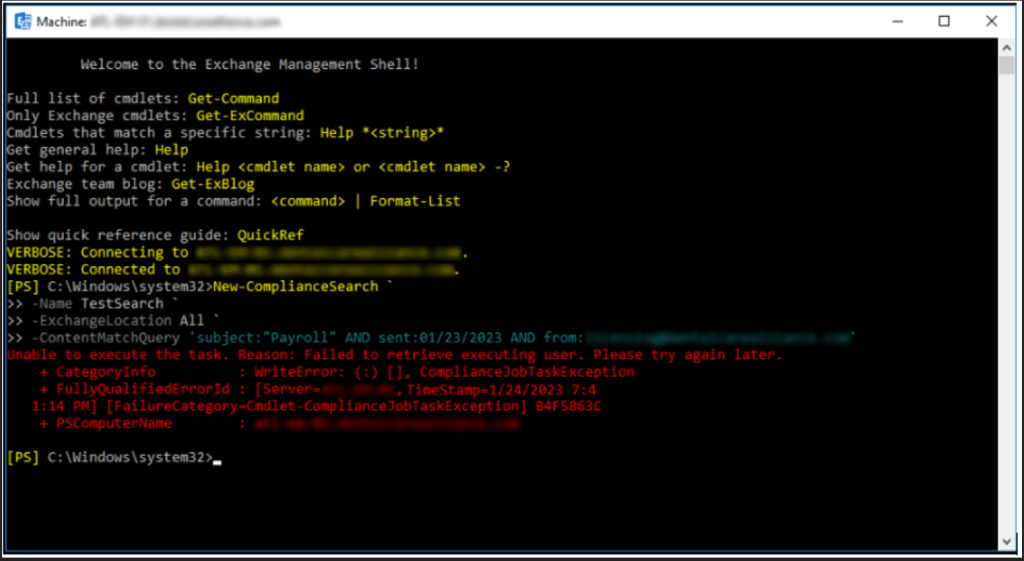
Assign the Discovery Management role group
Launch the Exchange Admin Center and sign with an administrator account
Click Start>Microsoft Exchange Server 2016>Exchange Admin Center
Navigate to and select permissions>admin roles>Discovery Management
Add your user account to the Members list
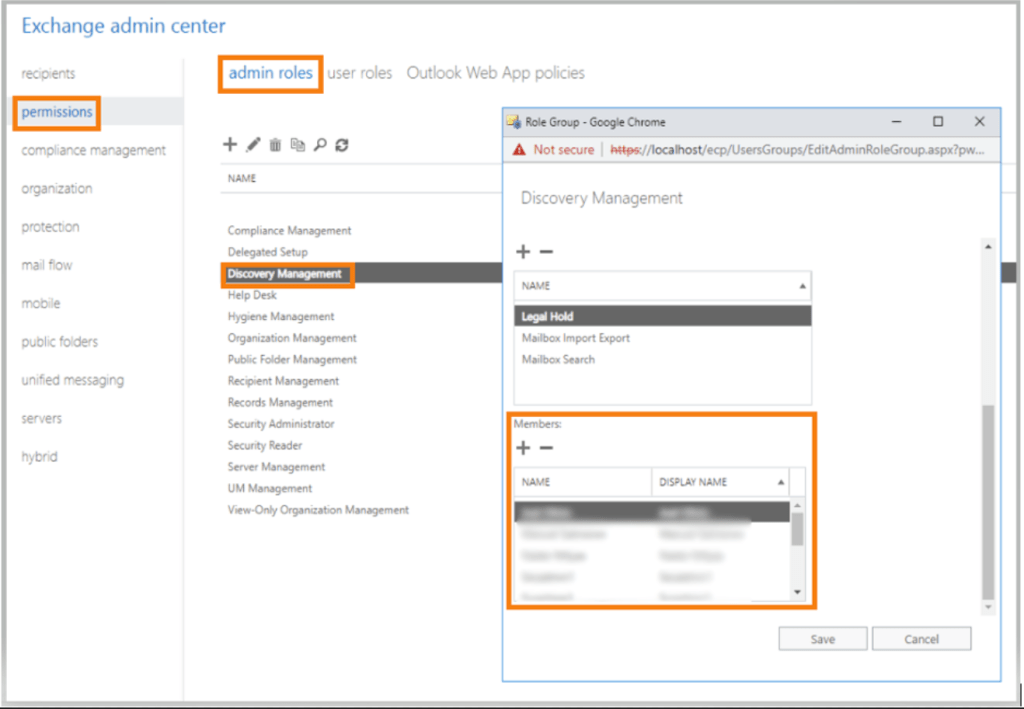
*You may need to sign out and back in with the user account that has a mailbox setup to create and perform the compliance search in the Exchange Management Shell
Create Compliance Search
To run a command for Exchange Server, we will need to open the Exchange Management Shell
Click Start>Microsoft Exchange Server 2016>Exchange Management Shell
The commands to create a search and search action in Exchange Server are similar to Exchange Online. You can use the commands below:
New-ComplianceSearch -Name EmailSearch-ExchangeLocation All -ContentMatchQuery ‘subject:”Change your passwords!” AND sent:01/23/2023 AND from:user@mycompany.com’
This command only creates the new search, we still must run it. Type the following to start the search:
Start-ComplianceSearch -Identity EmailSearch
You can check the status of the search by typing the following:
Get-ComplianceSearch -Identity EmailSearch
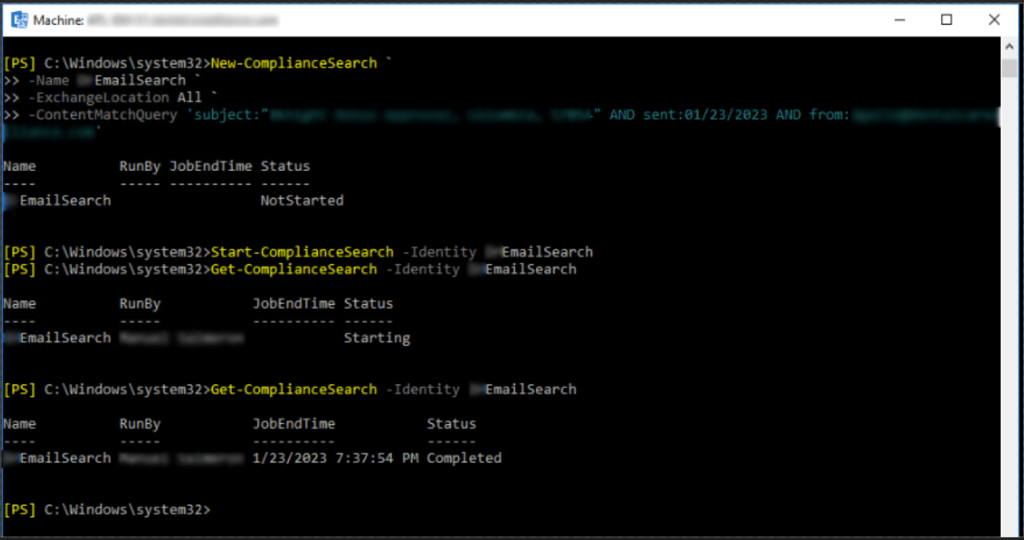
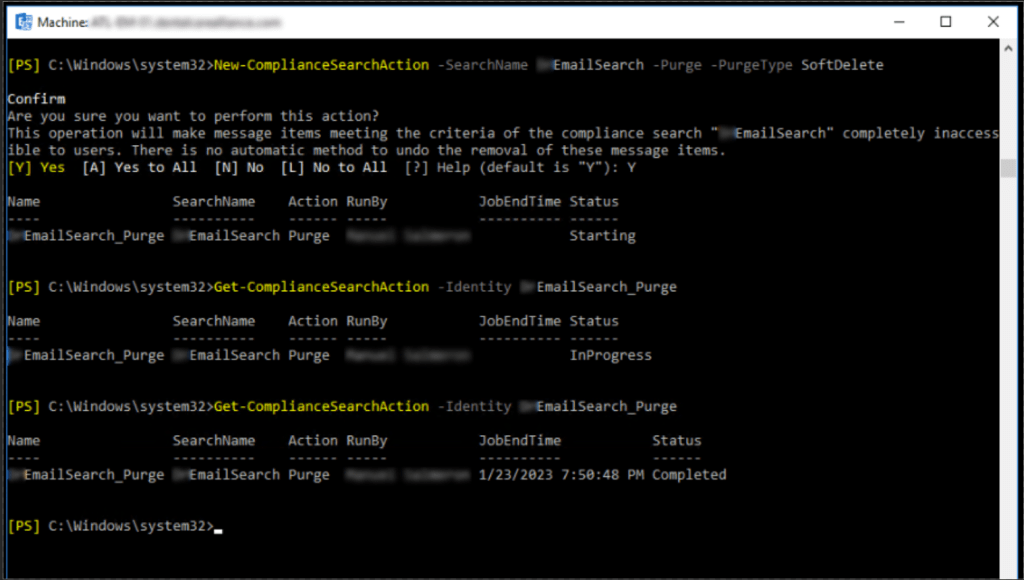
Once the search has completed, we can run the purge action to delete the emails that matched the search criteria. Unlike Exchange Online, we can only perform a soft delete with Exchange Server. You will be prompted to confirm the purge action.
New-ComplianceSearchAction -SearchName EmailSearch -Purge -PurgeType SoftDelete
You can check the status of the purge action by using the following:
Get-ComplianceSearchAction -Identity EmailSearch_Purge