When dealing with a hybrid Exchange environment, the normal process of creating mailboxes is to create the user account with Active Directory Users and Computers (ADUC), create the mailbox in Exchange Server, sync to the cloud, add a license, then finally migrate the mailbox with Exchange Online Admin Center.
I recently created a shared mailbox in the cloud instead of on-premises and now, on-premises mailboxes are getting a Non-Delivery Report (NDR) when they try to send mail to the shared mailbox in the cloud because the Remote Routing Address is missing. The cloud mailbox do
To fix this, we will need to create the user account in ADUC and run the PowerShell commands below.
First, we will need to connect to Exchange Online PowerShell Module to get the Exchange GUID of the cloud mailbox:
Connect-ExchangeOnline
Get-Mailbox username | fl ExchangeGUID
This should give you the Exchange GUID for the cloud mailbox. Copy this GUID for later.
Next, we will need connect to the on-premises Exchange Server and launch the Exchange Management Shell and type the following commands:
Enable-RemoteMailbox username -RemoteRoutingAddress username@company.mail.onmicrosoft.com
Set-RemoteMailbox username -ExchangeGUID <Exchange GUID copied earlier>
Wait for the changes to synchronize or manually run an Azure AD Sync to expedite the changes.
Once the changes have been synchronized, the shared mailbox will be converted to a regular mailbox. If you wish to keep it as a regular mailbox, you will need to add a license. Or you can simply convert back to a shared mailbox.
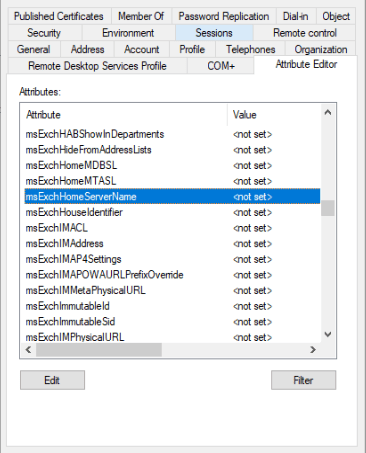
If the user account already existed, you may need to clear the msExchHomeServerName attribute in ADUC.