
Microsoft released an update on April 28th in the Message Center stating web links in the Outlook for Windows app would begin opening with the Microsoft Edge browser, regardless of pre-configured settings your organization has set for default browser. It’s important to note, this does not change your default browser, it will only change how links clicked within Outlook and Teams are opened. The change is set to roll out in about 30 days to all Microsoft 365 tenants. They also mentioned the change will happen with the Teams app in the near future. Most organizations use Google Chrome as a default browser so this change could cause some upset customers if not handled properly.
In this post, I will walk you through creating a Microsoft 365 Cloud Policy to configure which browser opens web links. Creating this policy will ensure that your default browser will be the browser of choice when web links are clicked from within these Microsoft 365 apps. Before we start, I would like to advocate for using Microsoft Edge for a second. I have been using Edge for the past few months and I am happy to say, this new browser experience exceeds my expectations. It is now my browser preference over Chrome for a number of reasons including better memory utilization, browser profiles, and native SSO. OK, that’s enough of my two cents. Let’s create some policies!
Requirements
Creating this policy requires a Microsoft 365 for enterprise plan including E1, E3, or E5. If you have Business plans including Business Basic, Standard, or Premium, your users will need to manage this change individually. We will discuss managing this change for both.
Creating a Policy
Navigate to the Microsoft 365 Apps admin center
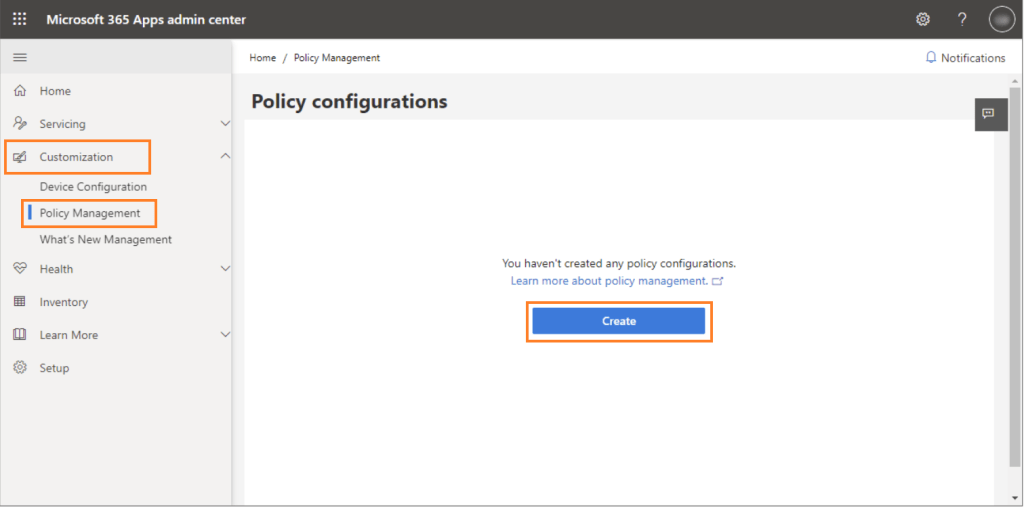
In the left-hand menu, select Customization>Policy Management and click Create
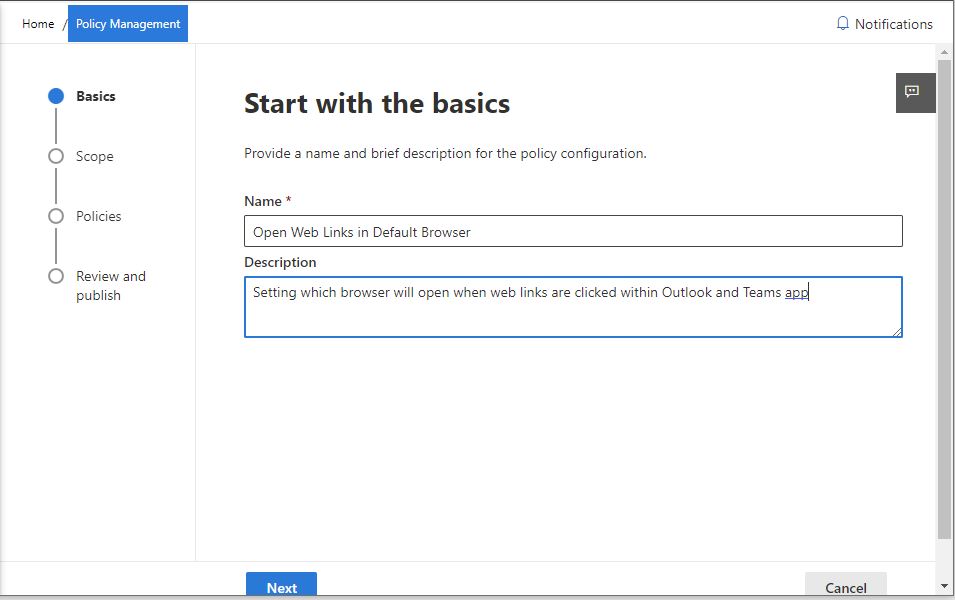
Give the policy a name and description and click Next
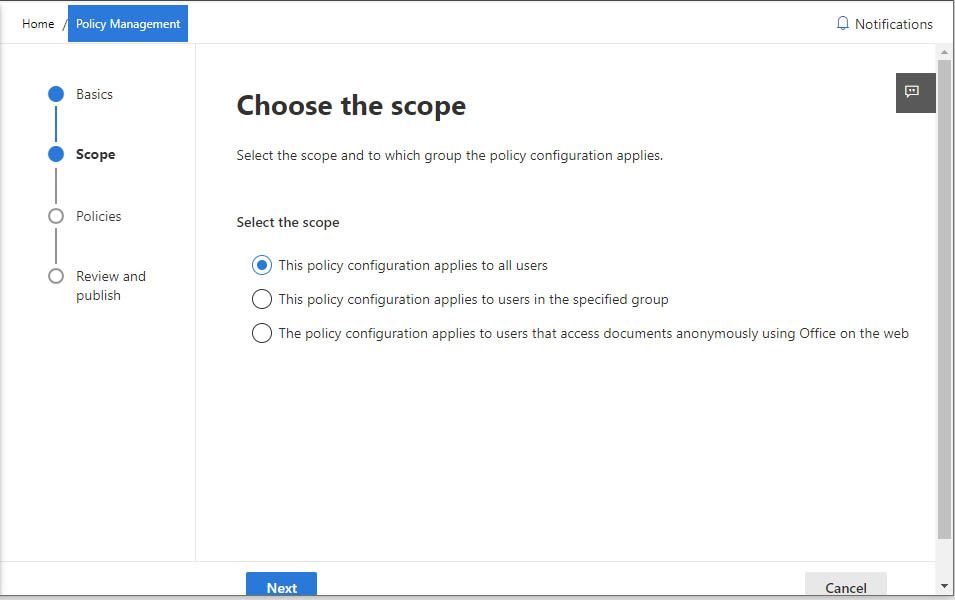
Here you can select the apply the policy to all users or a small group of users to test. Click Next
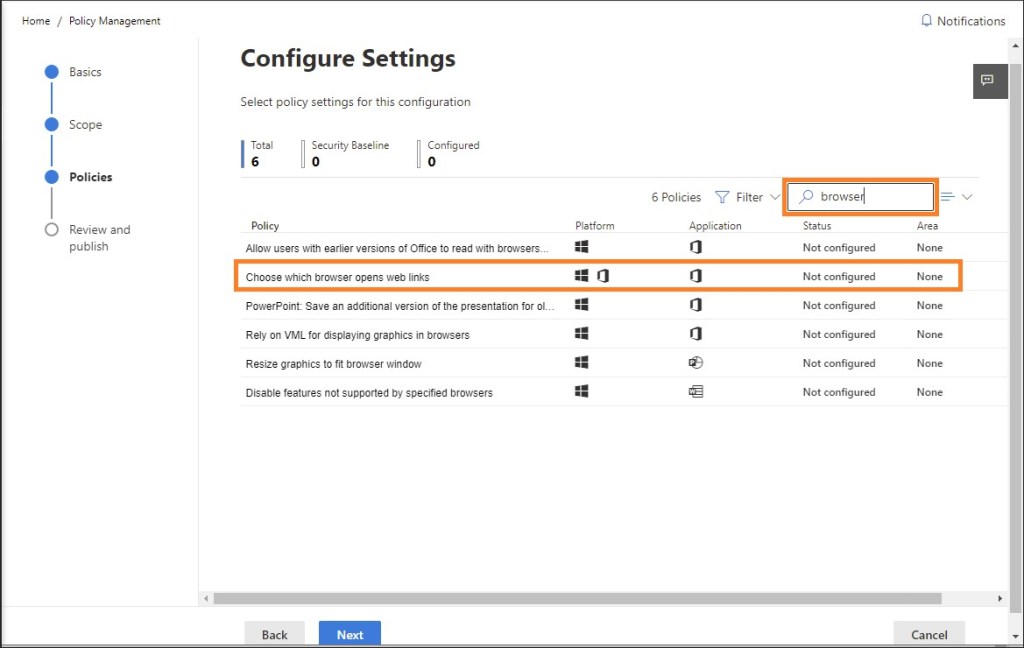
In the Policies section, type browser in the search box and select Choose which browser opens web links
In the Configuration setting drop-down, select Default Browser and click Apply
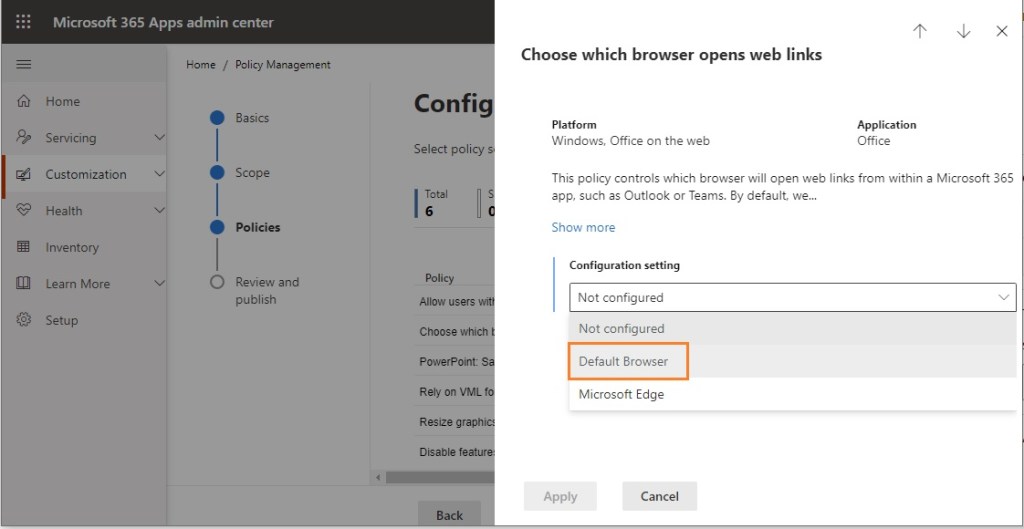
Back in the Policies section, click Next
Review all the settings and click Create
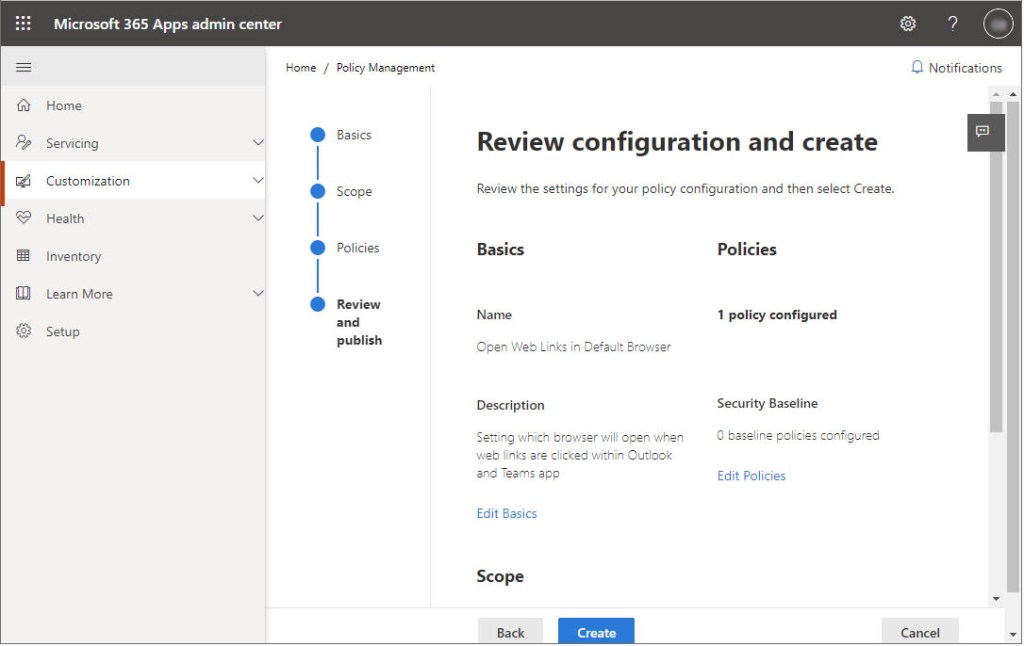
Once the policy is created, if you chose to deploy to an Azure AD group of users, the policy will be applied once the Office app is restarted. Policies from Cloud Policy have the same behavior as Group Policy in this sense. It’s important to note, policies created with Cloud Policy take precedence over policies created through Group Policy as well as locally applied policies.
Managing Change for Business Plans
As mentioned previously, if your organization only has Microsoft 365 Business plans, your users will need to manage this change individually. Once the change goes into effect and a web link opens with Edge for the first time, your user will see a notification in the Edge browser mentioning the change similar to the image below:
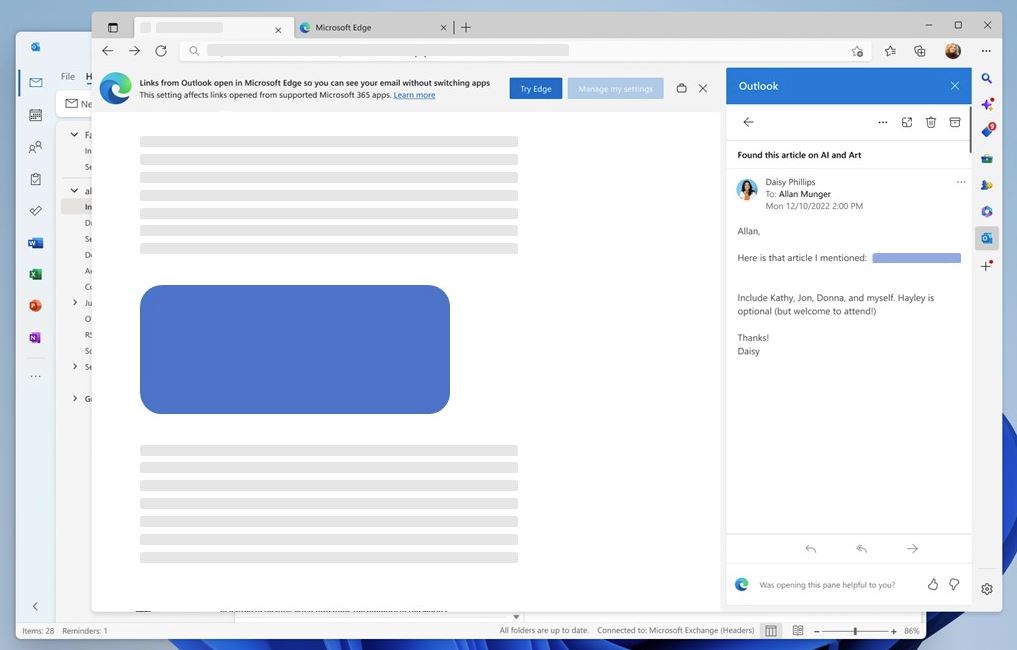
Users can select Manage my settings in the notification to change how web links open. They can also manage this with Outlook at any time by selecting File > Options > Advanced > Link Handling

