By default, Microsoft does not restrict access to the Azure Portal for non-admin user accounts. That means all data about your organization including user details, group details, device details, and user account privileges is available to anyone in your organization. This also includes guests and vendors that have an Azure AD user account. In this post, we will talk about blocking the Microsoft Azure Management application from non-admin users. This includes blocking the Azure Portal and API. As a result, any services or clients with an Azure API dependency will be impacted by this. This includes the following:
- Azure Resource Manager
- Azure portal, which also covers the Microsoft Entra admin center
- Azure Data Lake
- Application Insights API
- Log Analytics API
- Classic deployment model APIs
- Azure PowerShell
- Azure CLI
- Azure DevOps
- Azure Data Factory portal
- Azure Event Hubs
- Azure Service Bus
- Azure SQL Database
- SQL Managed Instance
- Azure Synapse
- Visual Studio subscriptions administrator portal
- Microsoft IoT Central
Why should we care if a regular employee has access to this data if it is read only?
It seems every other day we are reading about some other organization becoming a victim of a cyberattack. Cyberattacks are launched by several different types of threat actors, both outside and inside the organization. According to the 2023 Insider Threat Report by Cybersecurity Insiders, 74% of organizations are vulnerable to insider threats and more than half of organizations have experienced an insider threat in the last year. 53% say insider attacks are even harder to detect in the cloud. We should strive to implement the principle of least privilege across the entire organization and not just for administrator accounts. This post isn’t saying all regular employees should be considered or treated like a threat by locking down and reporting on all activity. An attack can happen deliberately or accidentally.
The best that we can do as administrators is to restrict access to sensitive data that a regular user doesn’t necessarily require access.
Restrict User Access to Azure Portal
There are two ways to go about restricting access to the Azure Portal. The first option is to disable the Azure portal in Azure Active Directory User Settings. This option will require additional steps to disable the other services like Azure PowerShell. Only users that have an Azure role assigned will have access to the portal, including Global Reader.
The second option is to create a conditional access policy to block the Microsoft Azure Management application and API’s. This is the option I recommend since it is all inclusive and we have user management options for exclusions.
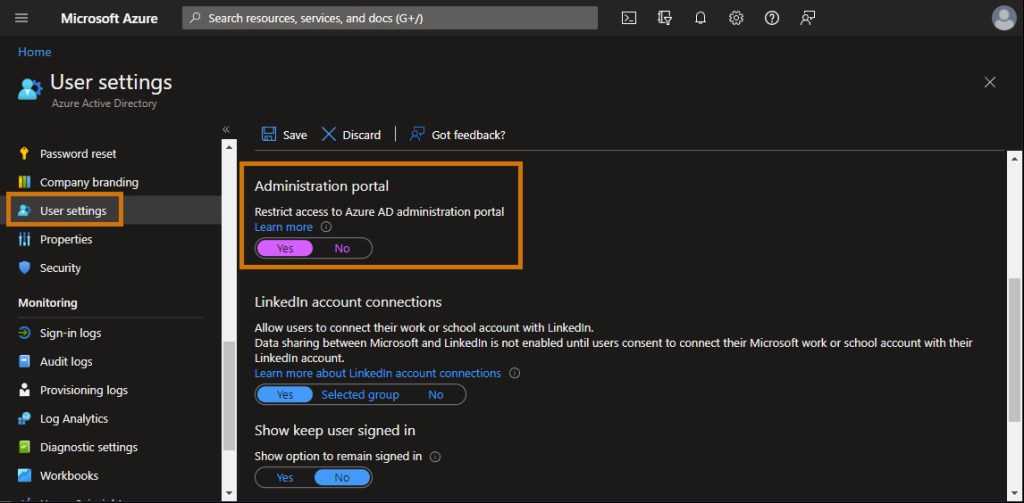
To restrict access to the Azure Portal in Azure AD, launch the Azure Active Directory admin center and select User Settings in the left-hand menu.
Then scroll down until you see the Administration portal section and select Yes. Don’t forget to click Save
I won’t be diving into manually restricting access to all the other services listed above, but I will provide the PowerShell cmdlet to disable read access.
Install-Module MSOnline
Connect-MsolService
Set-MsolCompanySettings -UsersPermissionToReadOtherUsersEnabled $false
You can find more information about blocking PowerShell from Microsoft here.
Conditional Access Policy to Restrict Microsoft Azure Management
Navigate to Azure AD Conditional Access and select Policies or click here
Click +New Policy
Name – the policy
Users
- Include – All users or Select users and groups
- Exclude – Directory roles and select all administrator roles (**This is very important and could possibly lock you out so make sure to choose correctly**)
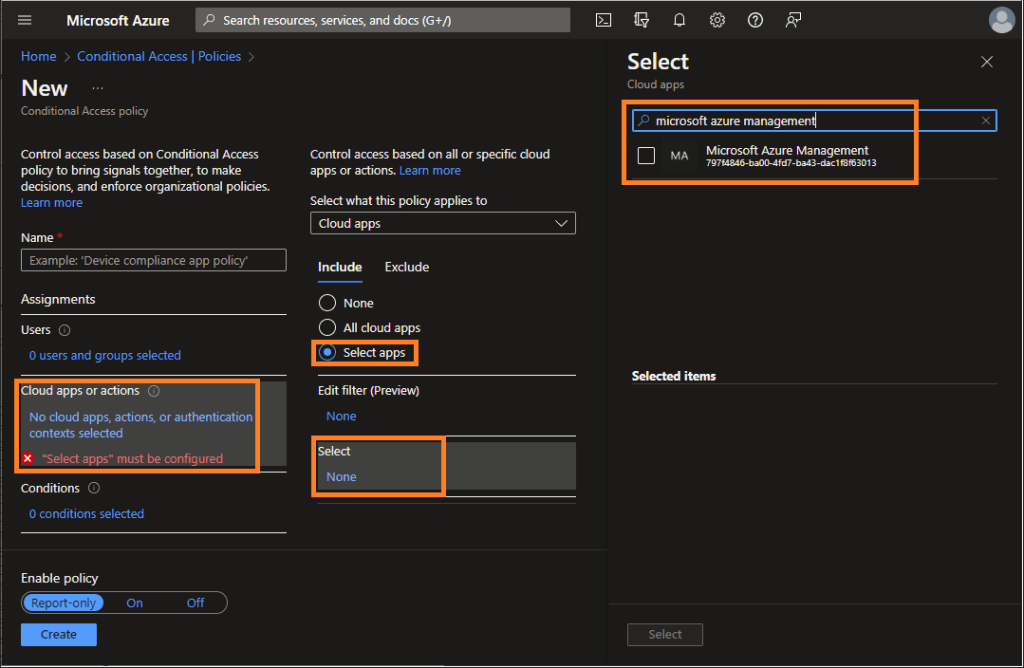
Cloud app or actions – click Select apps and click the Select section to search for the Microsoft Azure Management application and select it
Grant – click Block access
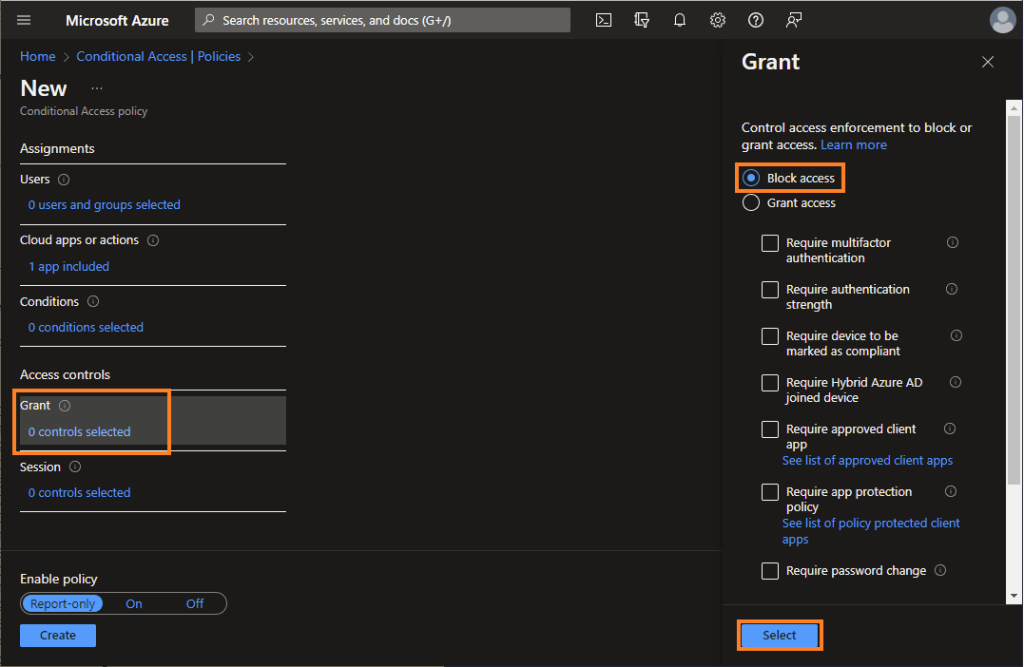
I recommend creating this policy in Report-only mode and monitoring it to make sure it does what you want before enabling it.
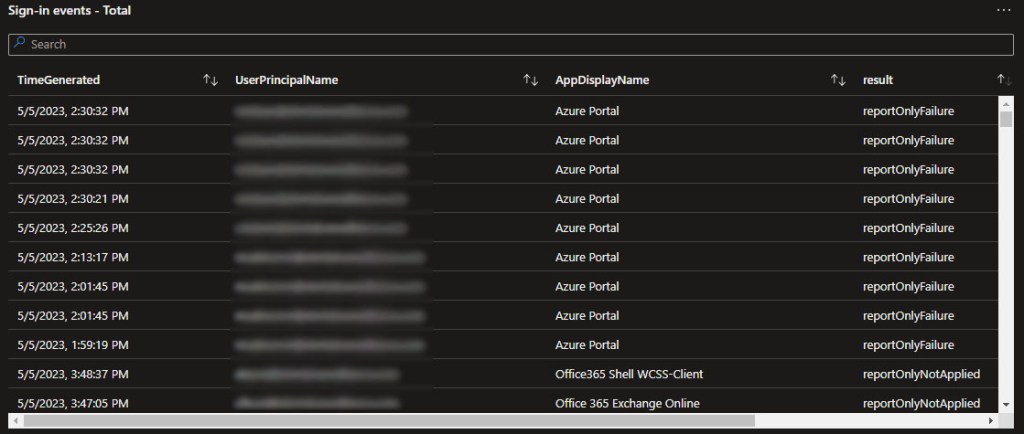
Once the policy is created and you’ve given it some time to take effect, click Insights and reporting to monitor sign-in events. Make sure to select the correct conditional access policy in the drop-down menu and adjust the time range.
If you scroll down to sign-in events, you will see the results of the new policy. If configured properly, you should see non-admin user accounts that try to access the Azure portal result in a failure.
If you check the results section, you will see two results:
reportOnlyFailure – All configured policy conditions were satisfied but not all the required non-interactive grant controls or session controls were satisfied. For example, a policy applies to a user where a block control is configured, or a device fails a compliant device policy.
reportOnlyNotApplied – Not all configured policy conditions were satisfied. For example, the user is excluded from the policy or the policy only applies to certain trusted named locations.