
In this post, we will work on creating a desktop shortcut with Group Policy. For this example, we will just create a GPO in the root domain.
Launch Group Policy Management on Windows Server
Right click the domain and select Create a GPO in this domain, and Link it here…

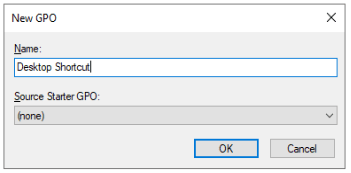
Give the new Group Policy Object (GPO) a name and click OK
Locate the newly created GPO, right click on it and select Edit
Expand User Configuration > Preferences > Windows Settings > Shortcuts > New > Shortcut

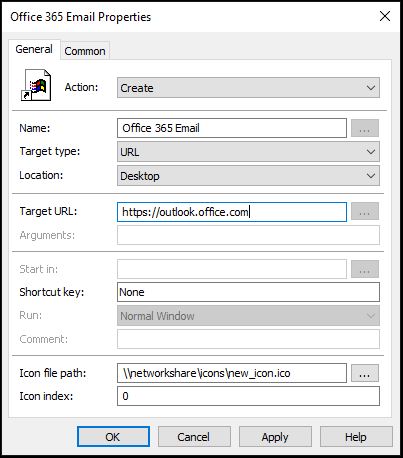
Use the following settings:
Action: Create
Name: Choose the display name of the new shortcut
Target type: URL
Location: Desktop
Target URL: FQDN of the URL
Icon file path: make sure to use a shared network path to which the user has at least read access
Click OK and run gpupdate /force on a user’s computer to see the new shortcut

